 devmobasa
34 KiB
wayscriber


A ZoomIt-like real-time screen annotation tool for Linux/Wayland, written in Rust.
Docs: https://wayscriber.com/docs/
Screenshots
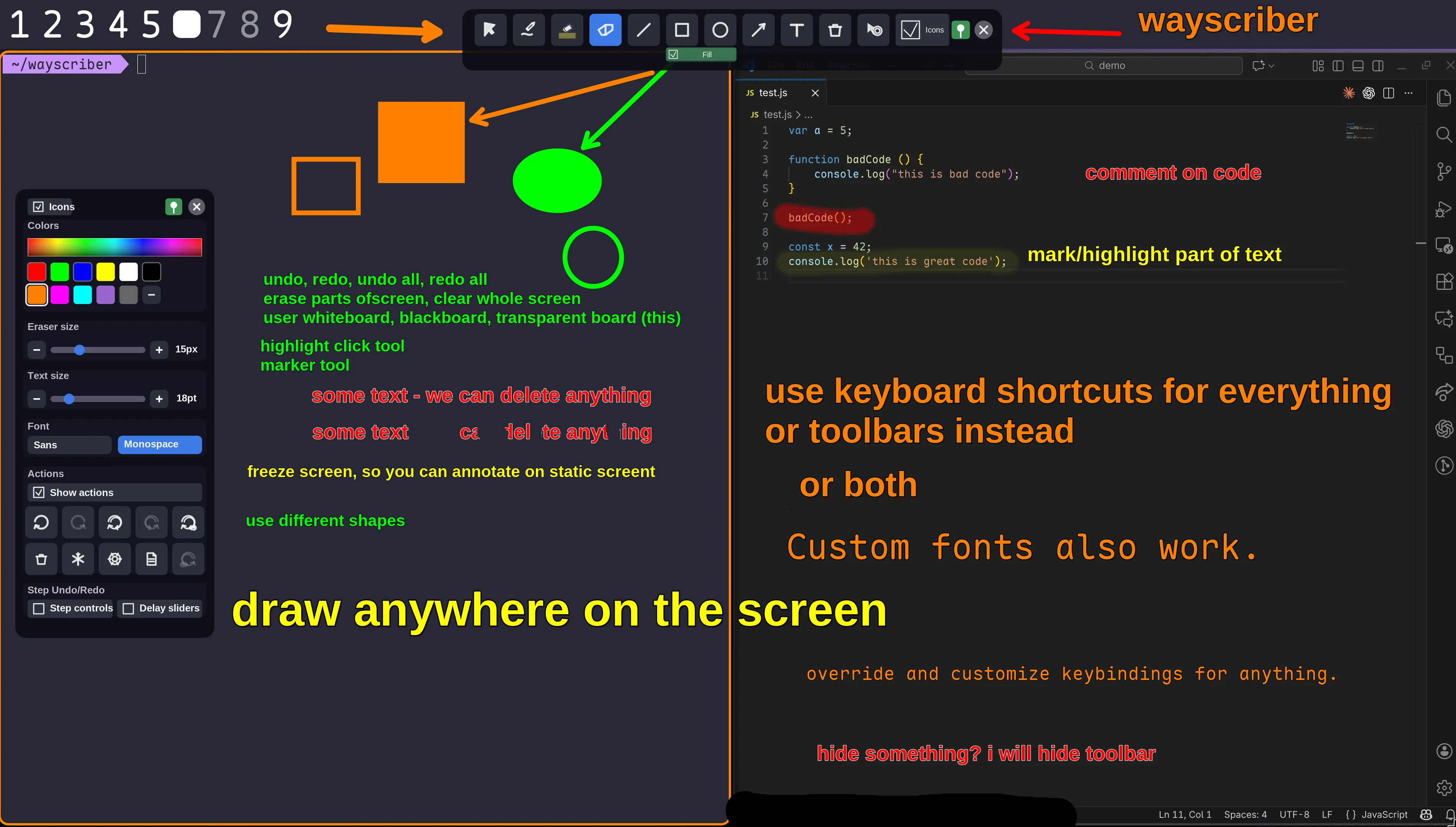
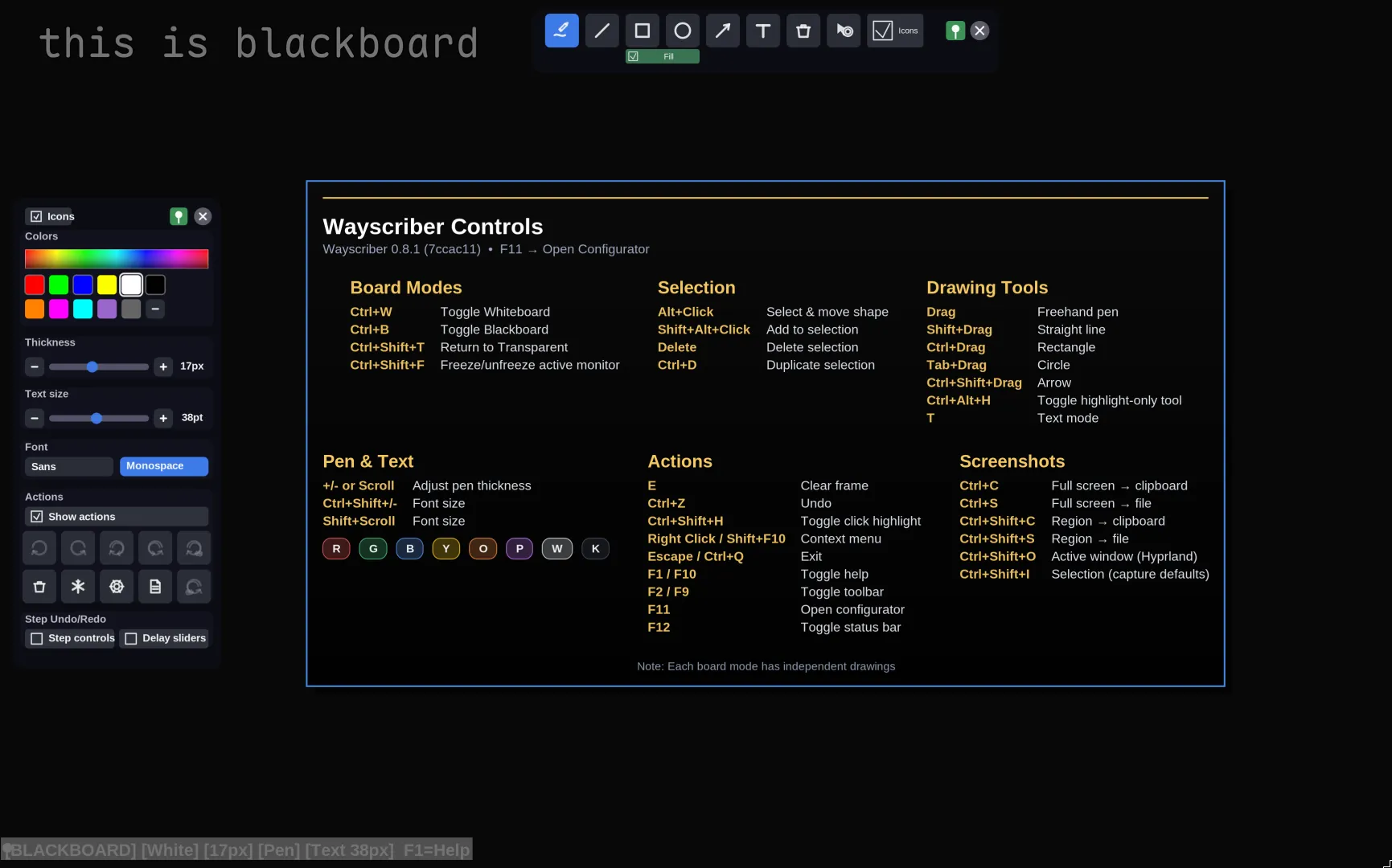
Table of Contents
- Quick Start
- Why wayscriber?
- Features
- Installation
- Usage
- Getting Help
- Controls Reference
- Configuration
- Troubleshooting
- Contributing
- Roadmap
- Additional Information
- License & Credits
Quick Start
CLI quick install
Pick the block for your distro. Repo, AUR, and Nix installs are the best default for CLI users because they use the normal system update flow. GitHub .deb/.rpm downloads are one-off installs; use them only when you do not want to add a repo.
Debian and Ubuntu
Also use this path for Linux Mint, Pop!_OS, and other Debian-based distros.
sudo apt update
sudo apt install curl gpg
sudo install -d -m 0755 /usr/share/keyrings
curl -fsSL https://wayscriber.com/apt/WAYSCRIBER-GPG-KEY.asc | gpg --dearmor | sudo tee /usr/share/keyrings/wayscriber.gpg > /dev/null
echo "deb [signed-by=/usr/share/keyrings/wayscriber.gpg] https://wayscriber.com/apt stable main" | sudo tee /etc/apt/sources.list.d/wayscriber.list
sudo apt update
sudo apt install wayscriber
# Optional GUI configurator:
sudo apt install wayscriber-configurator
Fedora and RHEL
Also use this path for Rocky Linux, AlmaLinux, Nobara, and other RPM-based distros.
cat <<'EOF' | sudo tee /etc/yum.repos.d/wayscriber.repo
[wayscriber]
name=Wayscriber Repo
baseurl=https://wayscriber.com/rpm
enabled=1
gpgcheck=1
repo_gpgcheck=1
gpgkey=https://wayscriber.com/rpm/RPM-GPG-KEY-wayscriber.asc
EOF
sudo dnf clean all
sudo dnf install wayscriber
# Optional GUI configurator:
sudo dnf install wayscriber-configurator
Arch Linux
Also use this path for Manjaro, CachyOS, and other Arch-based distros.
yay -S wayscriber-bin    # prebuilt binary
# or:
yay -S wayscriber        # build from source
# Optional GUI configurator:
yay -S wayscriber-configurator
Use your preferred AUR helper if you do not use yay.
Nix and NixOS
nix run github:devmobasa/wayscriber -- --active
# or install to your profile:
nix profile install github:devmobasa/wayscriber
wayscriber --active
# Optional GUI configurator:
nix profile install github:devmobasa/wayscriber#wayscriber-configurator
Unpinned GitHub flake URLs follow the default branch. To run or install a specific release, pin the tag, for example:
nix run 'github:devmobasa/wayscriber?ref=v0.9.19' -- --active
nix profile install 'github:devmobasa/wayscriber?ref=v0.9.19'
nix profile install 'github:devmobasa/wayscriber?ref=v0.9.19#wayscriber-configurator'
For browser downloads, see No terminal install. For source builds, see From Source.
First launch
After a package-manager install:
wayscriber --version
wayscriber --active
If you used the nix run command above, it already launches the app without installing it to PATH.
Press F1 or F10 for help, Shift+F1 for quick reference, Ctrl+K for the command palette, and Escape to hide or exit.
Daily daemon setup
Daemon mode is preferred for daily use because toggles are faster and session state survives between activations.
systemctl --user enable --now wayscriber.service
wayscriber --daemon-toggle
Bind wayscriber --daemon-toggle to a global shortcut in your compositor or desktop environment. Ubuntu GNOME users: Super+G is a good default because Super+D is often reserved.
For distro-specific package details, see Installation. For keybinding examples and daemon behavior, see Usage.
Why wayscriber?
- Annotate live over any app without disrupting your workflow
- Professional presentation tools — presenter mode, numbered callouts, click highlights, screen freeze, zoom
- Persistent sessions that survive restarts
- Native Wayland performance with ZoomIt-like controls
- Lightweight daemon with instant toggle via keybind
Platform Support
| Platform | Status | Notes |
|---|---|---|
| Wayland (layer-shell) | ✅ Supported | Hyprland, Sway, River, Wayfire, Niri/Cosmic, Plasma/KWin |
| GNOME | ⚠️ Partial | Portal fallback; overlay windowed |
| X11 | ❌ | Not supported |
Tested environments
- Ubuntu 25.10 GNOME (xdg fallback)
- Fedora 43 KDE (Plasma, layer-shell)
- Fedora 43 GNOME (xdg fallback)
- Debian 13.2 KDE (Plasma, layer-shell)
- Debian 13.2 GNOME (xdg fallback)
- CachyOS 2025-August KDE (Plasma, layer-shell)
- Hyprland on Arch (layer-shell)
- Niri on Arch (layer-shell)
Features
Drawing & Editing
- Freehand pen, highlighter, eraser (circle/rect)
- Shapes: lines, rectangles, ellipses, polygons (with fill toggle)
- Arrows with optional auto-numbered labels
- Step markers for walkthroughs
- Multiline text & sticky notes with smoothing
- Selection: Alt-drag, V tool, properties panel
- Duplicate (Ctrl+D), delete (Delete), undo/redo
- Color picker, palettes, size via hotkeys or scroll
- Render color profiles for print/projector/light-theme preview
- Radial menu at cursor (Middle-click): quick tool/color selection + scroll size adjust
Boards
- Named boards with transparent overlay or custom backgrounds
- Isolated pages per board with auto-contrast pens
- Pan solid boards with Space + left-drag; reset from the context menu
- Jump slots: Ctrl+Shift+1..9
- Toggle whiteboard/blackboard
- Board picker: Ctrl+Shift+B
Capture & Screenshots
- Full-screen saves, active-window grabs, region capture
- Copy to clipboard or save to file
- Uses
grim,slurp,wl-clipboard(installed automatically by deb/rpm/AUR packages; fallback: xdg-desktop-portal)
Session Persistence
- Opt-in per board/monitor canvas + tool state restore
- CLI overrides:
--resume-session/--no-resume-session - Tray checkmark flips config on disk
Toolbars & UI
- Floating toolbars (pin/unpin: F2/F9)
- Preset slots, icon or text modes
- Color picker with extended palettes
- Status bar, board/page controls
- Help overlay (F1), quick reference (Shift+F1)
- Command palette (Ctrl+K)
Multi-Monitor
- Move overlay focus between monitors: Ctrl+Alt+Shift+←/Ctrl+Alt+Shift+→
- Toolbars and status bar follow the active output when output focus changes
- Optional active output badge in status bar (
ui.active_output_badge) - Output-scoped session restore when
session.per_output = true - GNOME fallback output pinning via
ui.preferred_outputorWAYSCRIBER_XDG_OUTPUT
Presets
- Save tool + color + size (plus fill/opacity/text) into 3-5 slots
- Apply: 1-5
- Save: Shift+1-Shift+5
Presenter Helpers
- Click highlights with configurable colors/radius/duration
- Persistent ring while click highlight tool is active
- Presenter mode (Ctrl+Shift+M): hides UI, forces click highlights
- Light passthrough mode (layer-shell): Ctrl+Shift+L enters from the focused overlay; compositor/global shortcuts such as
wayscriber --light-togglekeep control reliable while input is passed through - Screen freeze (Ctrl+Shift+F): pause display while apps run
Callouts & Zoom
- Numbered callouts: auto-numbered arrow labels, step markers
- Reset shortcuts (Ctrl+Shift+R for arrow labels): see Controls Reference
- Zoom: spotlight details with ZoomIt-style controls
- Zoom in/out: Ctrl+Alt + scroll or Ctrl+Alt++/Ctrl+Alt+-
- Reset: Ctrl+Alt+0
- Lock view: Ctrl+Alt+L
- Pan: middle drag or arrow keys
- Right-click menu: Zoom → Zoom In / Zoom Out / Reset Zoom
Installation
Pick an install path
| You want | Use |
|---|---|
| Fast CLI install with auto-updates on Debian/Ubuntu/Mint/Pop!_OS | Debian / Ubuntu repo |
| Fast CLI install with auto-updates on Fedora/RHEL/Rocky/Alma/Nobara | Fedora / RHEL repo |
| Arch, Manjaro, CachyOS, or another Arch-based distro | AUR, preferably wayscriber-bin for the prebuilt package |
Nix profile, nix run, or NixOS flake setup |
NixOS / Nix |
| Browser-based install without adding a repo | GitHub Releases |
| Hacking on wayscriber or building a local binary | From Source |
Install the main wayscriber package first. wayscriber-configurator is optional and does not include the wayscriber binary.
No terminal install (GitHub Releases)
If you prefer downloading files in a browser instead of using package-manager commands:
- Open latest release.
- Install the main app package that matches your distro:
- wayscriber-amd64.deb (Ubuntu, Debian, Linux Mint, Pop!_OS, and other Debian-based distros)
- wayscriber-x86_64.rpm (Fedora, RHEL, Rocky Linux, AlmaLinux, Nobara, and other RPM-based distros)
- Optional: install the configurator package (
wayscriber-configurator) after wayscriber:- wayscriber-configurator-amd64.deb
- wayscriber-configurator-x86_64.rpm
- Note:
wayscriber-configuratoris a separate app and does not installwayscriber.
- Launch Wayscriber from your application menu/launcher.
- Optional later: switch to daemon mode (preferred) using the steps in Usage.
Release packages are one-off installs (no auto-updates). Use repo installs below for automatic updates.
Debian / Ubuntu (repo – recommended)
sudo apt update
sudo apt install curl gpg
sudo install -d -m 0755 /usr/share/keyrings
curl -fsSL https://wayscriber.com/apt/WAYSCRIBER-GPG-KEY.asc | gpg --dearmor | sudo tee /usr/share/keyrings/wayscriber.gpg > /dev/null
echo "deb [signed-by=/usr/share/keyrings/wayscriber.gpg] https://wayscriber.com/apt stable main" | sudo tee /etc/apt/sources.list.d/wayscriber.list
sudo apt update
sudo apt install wayscriber
# Optional GUI configurator:
sudo apt install wayscriber-configurator
One-off .deb (no auto-updates):
wget -O wayscriber-amd64.deb https://github.com/devmobasa/wayscriber/releases/latest/download/wayscriber-amd64.deb
sudo apt install ./wayscriber-amd64.deb
Configurator .deb (optional):
wget -O wayscriber-configurator-amd64.deb https://github.com/devmobasa/wayscriber/releases/latest/download/wayscriber-configurator-amd64.deb
sudo apt install ./wayscriber-configurator-amd64.deb
Fedora / RHEL (repo – recommended)
cat <<'EOF' | sudo tee /etc/yum.repos.d/wayscriber.repo
[wayscriber]
name=Wayscriber Repo
baseurl=https://wayscriber.com/rpm
enabled=1
gpgcheck=1
repo_gpgcheck=1
gpgkey=https://wayscriber.com/rpm/RPM-GPG-KEY-wayscriber.asc
EOF
sudo dnf clean all
sudo dnf install wayscriber
# Optional GUI configurator:
sudo dnf install wayscriber-configurator
One-off .rpm (no auto-updates):
wget -O wayscriber-x86_64.rpm https://github.com/devmobasa/wayscriber/releases/latest/download/wayscriber-x86_64.rpm
sudo dnf install ./wayscriber-x86_64.rpm
Configurator .rpm (optional):
wget -O wayscriber-configurator-x86_64.rpm https://github.com/devmobasa/wayscriber/releases/latest/download/wayscriber-configurator-x86_64.rpm
sudo dnf install ./wayscriber-configurator-x86_64.rpm
Arch Linux (AUR)
yay -S wayscriber-bin    # prebuilt binary
# or:
yay -S wayscriber        # build from source
# Optional GUI configurator:
yay -S wayscriber-configurator
NixOS / Nix
Run without installing:
nix run github:devmobasa/wayscriber -- --active
Install to profile:
nix profile install github:devmobasa/wayscriber
# Optional GUI configurator:
nix profile install github:devmobasa/wayscriber#wayscriber-configurator
Add to NixOS configuration (flake-based):
# flake.nix
{
  inputs = {
    nixpkgs.url = "github:NixOS/nixpkgs/nixos-unstable";
    wayscriber.url = "github:devmobasa/wayscriber";
  };

  outputs = { nixpkgs, wayscriber, ... }: {
    nixosConfigurations.myhost = nixpkgs.lib.nixosSystem {
      system = "x86_64-linux";
      modules = [{
        environment.systemPackages = [
          wayscriber.packages.x86_64-linux.default
        ];
      }];
    };
  };
}
Development shell:
nix develop github:devmobasa/wayscriber
Unpinned GitHub flake URLs follow the default branch. Pin a release tag when you want reproducible release installs:
nix run 'github:devmobasa/wayscriber?ref=v0.9.19' -- --active
nix profile install 'github:devmobasa/wayscriber?ref=v0.9.19'
nix profile install 'github:devmobasa/wayscriber?ref=v0.9.19#wayscriber-configurator'
From Source
Dependencies:
Rust 1.95 or newer, plus native packages:
# Debian/Ubuntu
sudo apt-get install libcairo2-dev libwayland-dev libpango1.0-dev

# Fedora
sudo dnf install gcc gcc-c++ make pkgconf-pkg-config cairo-devel wayland-devel pango-devel libxkbcommon-devel cairo-gobject-devel
Build:
git clone https://github.com/devmobasa/wayscriber.git
cd wayscriber
cargo build --release
# Binary: target/release/wayscriber
Optional install script:
./tools/install.sh
Screenshot Tools
wl-clipboard, grim, and slurp are installed automatically by deb/rpm/AUR packages.
If you build from source or use the tarball, install them manually:
sudo apt-get install wl-clipboard grim slurp   # Debian/Ubuntu
sudo dnf install wl-clipboard grim slurp       # Fedora
See https://wayscriber.com/docs/ for the latest documentation.
Usage
Daemon Mode (preferred)
Recommended for daily use: faster toggle, better workflow, and session persistence.
Run wayscriber in the background and toggle with a keybind:
systemctl --user enable --now wayscriber.service
No-CLI setup path:
- Open
wayscriber-configurator - Go to the
Daemontab - Click
Install/Update Service, thenEnable + Start - Set a shortcut and click
Apply Shortcut- GNOME: writes a GNOME custom shortcut (
wayscriber --daemon-toggle) - KDE/Plasma: writes systemd drop-in env (
WAYSCRIBER_PORTAL_SHORTCUT) for portal global shortcuts
- GNOME: writes a GNOME custom shortcut (
Add keybinding:
Hyprland:
bind = SUPER, D, exec, wayscriber --daemon-toggle
Use only one toggle binding. Duplicate SUPER+D entries can fire twice and immediately undo the toggle.
If your compositor shortcut environment does not resolve wayscriber from PATH, use the absolute path from command -v wayscriber instead.
Reload your config:
hyprctl reload
GNOME (Ubuntu/Debian/Fedora):
- Open
Settings -> Keyboard -> Keyboard Shortcuts. - Scroll down to
Custom Shortcuts, click+. - Name:
Wayscriber Toggle. - Command:
wayscriber --daemon-toggle. - Set a shortcut key (recommended on Ubuntu GNOME: Super+G; Super+D is often already in use).
KDE Plasma:
- Open
Settings -> Keyboard -> Shortcuts. - Add new
Command or Script. - Name:
Wayscriber Toggle. - Command:
wayscriber --daemon-toggle. - Assign a key (for example Meta+Shift+D).
Other desktops/window managers:
- Bind
wayscriber --daemon-toggleto any global shortcut key you prefer.
Light passthrough controls:
- Ctrl+Shift+L is a Wayscriber in-overlay shortcut, not an OS/global shortcut. It works while the overlay is focused.
- Once light passthrough is active, normal keyboard and pointer input goes to the app underneath. Bind compositor/global shortcuts to
wayscriber --light-toggleandwayscriber --light-draw-togglefor reliable control. - Use
wayscriber --light-draw-onon press andwayscriber --light-draw-offon release for draw-while-held shortcuts.
Use --no-tray or WAYSCRIBER_NO_TRAY=1 if you don't have a system tray; otherwise right-click the tray icon for options:
- Toggle overlay visibility
- Freeze/unfreeze the current overlay
- Capture full screen / active window / region
- Toggle the help overlay
- Flip session resume on/off (writes to config)
- Clear saved session data
- Open the log folder
- Open configurator / open config file / quit
Troubleshooting tray icons:
- If the tray icon is blank or the menu shows square placeholders (notably Noctalia/Quickshell), start the daemon with
WAYSCRIBER_TRAY_FORCE_PIXMAP=1.
Alternative — use compositor autostart instead of systemd:
exec-once = wayscriber --daemon
bind = SUPER, D, exec, wayscriber --daemon-toggle
Service commands:
systemctl --user status wayscriber.service
systemctl --user restart wayscriber.service
journalctl --user -u wayscriber.service -f
One-Shot Mode (alternative)
Launch wayscriber when you need it, then exit:
wayscriber --active
wayscriber --active --mode whiteboard
wayscriber --active --mode blueprint
wayscriber --freeze   # start with screen frozen
Bind to a key (Hyprland example):
bind = SUPER, D, exec, wayscriber --active
Press F1/F10 for help or Shift+F1 for quick reference. Ctrl+K opens the command palette; F11 opens the configurator; Escape or Ctrl+Q exits.
Screenshot Shortcuts
| Shortcut | Action |
|---|---|
| Ctrl+Shift+P | Capture full screen (respects capture.copy_to_clipboard) |
| Ctrl+Shift+O | Capture active window (respects capture.copy_to_clipboard) |
| Ctrl+Shift+I | Capture selection (respects capture.copy_to_clipboard) |
| Ctrl+C | Copy full screen to clipboard |
| Ctrl+S | Save full screen as PNG |
| Ctrl+Shift+C | Select region → clipboard |
| Ctrl+Shift+S | Select region → save PNG |
| Ctrl+6 | Region → clipboard (explicit) |
| Ctrl+Alt+6 | Region → save PNG (explicit) |
| Ctrl+Alt+O | Open last capture folder |
Requires wl-clipboard, grim, slurp (installed automatically by deb/rpm/AUR packages). Falls back to xdg-desktop-portal if missing.
Canvas export commands are available in the command palette and keybindings. export_board_pdf_file saves the active board as a multi-page PDF, export_all_boards_pdf_file saves every board in board order, and both PDF actions are unbound by default. PDF exports keep transparent pages blank unless [export.pdf] transparent_background = "desktop" is set, which captures the live desktop behind the overlay for transparent pages only.
Use --exit-after-capture / --no-exit-after-capture to override whether the overlay closes after a capture. --about opens the About window.
Getting Help
- Help overlay: F1 or F10
- Quick reference: Shift+F1
- Command palette: Ctrl+K (search
monitorordisplayfor output actions) - Full docs: https://wayscriber.com/docs/
Controls Reference
Press F1 for the complete in-app cheat sheet.
Essential Shortcuts
| Action | Key |
|---|---|
| Freehand pen | Drag |
| Arrow | Ctrl+Shift + drag |
| Rectangle | Ctrl + drag |
| Text mode | T |
| Select/move | Alt + drag or V |
| Undo / Redo | Ctrl+Z / Ctrl+Y |
| Color keys | R G B Y O P W K |
| Size | + / - or scroll |
| Help | F1 |
| Exit | Escape |
All Drawing Tools
| Action | Key/Mouse |
|---|---|
| Freehand pen | Drag with left mouse button |
| Straight line | Shift + drag |
| Rectangle | Ctrl + drag |
| Ellipse/Circle | Tab + drag |
| Arrow | Ctrl+Shift + drag |
| Triangle / parallelogram / rhombus / regular polygon | Toolbar Polygons picker (bindable) |
| Freeform polygon | Toolbar Polygons picker, then click vertices; Enter or double-click to finish |
| Step marker tool | Toolbar (bindable) |
| Highlight brush | Ctrl+Alt+H |
| Text mode | T, Click to position, type, Enter to finish |
| Sticky note | N, Click to place, type, Enter to finish |
The polygon tools are available from the toolbar picker; their default keybindings are intentionally empty. Drag modifier mappings are configurable in config.toml via [drawing] (drag_tool, shift_drag_tool, ctrl_drag_tool, ctrl_shift_drag_tool, tab_drag_tool) or in the configurator Drawing tab. For per-button workflows, use [drawing.drag_tools.left], [drawing.drag_tools.right], and [drawing.drag_tools.middle]; each binding can set a tool and optional color. Freeform polygon is selectable but not drag-bindable.
Boards
| Action | Key |
|---|---|
| Toggle Whiteboard | Ctrl+W |
| Toggle Blackboard | Ctrl+B |
| Return to Transparent | Ctrl+Shift+T |
| Switch board slot | Ctrl+Shift+1..9 |
| Previous/next output | Ctrl+Alt+Shift + ←/→ |
| Previous/next board | Ctrl+Shift + ←/→ |
| New board | Ctrl+Shift+N |
| Delete board | Ctrl+Shift+Delete |
| Board picker | Ctrl+Shift+B |
| Pan solid boards | Hold Space + left-drag |
| Reset solid-board pan | Right-click → Reset Canvas Position |
Colors & Sizes
| Color | Key |
|---|---|
| Red | R |
| Green | G |
| Blue | B |
| Yellow | Y |
| Orange | O |
| Pink | P |
| White | W |
| Black | K |
| Action | Key |
|---|---|
| Increase thickness | + / = / scroll down |
| Decrease thickness | - / _ / scroll up |
| Increase font size | Ctrl+Shift++ / Shift + scroll down |
| Decrease font size | Ctrl+Shift+- / Shift + scroll up |
| Increase marker opacity | Ctrl+Alt + ↑ |
| Decrease marker opacity | Ctrl+Alt + ↓ |
Selection & Arrange
| Action | Key |
|---|---|
| Duplicate selection | Ctrl+D |
| Copy selection | Ctrl+Alt+C |
| Paste selection or copied PNG/JPEG image | Ctrl+Alt+V |
| Delete selection | Delete |
| Bring to front/back | ] / [ |
| Nudge selection | Arrow keys (large: PageUp/PageDown) |
| Move to edges | Home/End / Ctrl+Home/Ctrl+End |
| Select/move shapes | Hold Alt + drag |
| Select tool | V |
| Add to selection | Shift + click |
| Selection properties | Ctrl+Alt+P |
Pages
| Action | Key |
|---|---|
| Previous/next page | Ctrl+Alt + ←/→ or Ctrl+Alt + PageUp/PageDown |
| New page | Ctrl+Alt+N |
| Duplicate page | Ctrl+Alt+D |
| Delete page | Ctrl+Alt+Delete |
Editing & UI
| Action | Key |
|---|---|
| Undo | Ctrl+Z |
| Redo | Ctrl+Shift+Z / Ctrl+Y |
| Select all | Ctrl+A |
| Eraser | D |
| Toggle eraser mode | Ctrl+Shift+E |
| Clear all | E |
| Cancel action | Right-click (while drawing) / Escape |
| Context menu | Right-click (idle) / Shift+F10 / Menu, Arrow keys + Enter/Space |
| Edit selected text/note | Enter (single selection) |
| Toggle toolbars | F2 / F9 |
| Help overlay | F1 / F10 |
| Quick reference | Shift+F1 |
| Configurator | F11 |
| Command palette | Ctrl+K |
| Radial menu | Middle-click (idle) open/close; Left-click select; Right-click/Escape dismiss; scroll adjusts active tool size |
| Status bar | F4 / F12 |
| Apply preset slot | 1 - 5 |
| Save preset slot | Shift+1 - Shift+5 |
| Toggle click highlight | Ctrl+Shift+H |
| Toggle light passthrough (in-overlay) | Ctrl+Shift+L |
| Reset arrow labels | Ctrl+Shift+R |
| Toggle freeze | Ctrl+Shift+F |
| Zoom in/out | Ctrl+Alt + scroll / Ctrl+Alt++ / Ctrl+Alt+- |
| Reset zoom | Ctrl+Alt+0 |
| Toggle zoom lock | Ctrl+Alt+L |
| Pan zoom view | Middle drag / Arrow keys |
| Exit | Escape / Ctrl+Q |
For light passthrough, Ctrl+Shift+L is the default Wayscriber-level binding only while the overlay has focus. Use compositor/global shortcuts that run wayscriber --light-toggle and related light-draw commands once passthrough is active.
Arrow labels can auto-number when enabled in the arrow toolbar; reset with Ctrl+Shift+R. Step markers auto-increment and reset from the toolbar (or bind reset_step_markers in config.toml). Preset slots can be saved/cleared from the toolbar; edit names and advanced fields in config.toml. Blur has no default keyboard shortcut; bind select_blur_tool in config.toml if you want direct keyboard access.
Configuration
Config file: ~/.config/wayscriber/config.toml
Create from example:
mkdir -p ~/.config/wayscriber
cp config.example.toml ~/.config/wayscriber/config.toml
Or use the GUI configurator:
wayscriber-configurator # or press F11
Key Sections
[drawing]
default_color = "red"
default_thickness = 3.0
polygon_sides = 5

[drawing.drag_tools.right]
drag_tool = "pen"
drag_color = "blue"

[presets]
# slot_count: 3-5
slot_count = 5

[presets.slot_1]
name = "Red pen"
tool = "pen"
color = "red"
size = 3.0

[performance]
buffer_count = 3
enable_vsync = true
max_fps_no_vsync = 60
ui_animation_fps = 30

[ui]
# status bar visibility and position

[boards]
# named boards + backgrounds
Session Persistence
Enable via configurator (F11 → Session tab), CLI flags, or the tray checkmark (writes to config).
wayscriber --resume-session      # force resume (persist/restore all boards + history/tool state)
wayscriber --no-resume-session   # disable resume for this run
wayscriber --session-info        # inspect saved sessions
wayscriber --clear-session       # remove stored boards
Notes:
- When
restore_tool_stateis enabled (default), the last-used tool settings (including arrow head placement) override config defaults on startup. Disable it in the Session tab or clear the session to force config values.
Tablet/Stylus Support
Tablet support (zwp_tablet_v2) ships in default builds and is enabled at runtime by default:
[tablet]
enabled = true
pressure_enabled = true
min_thickness = 1.0
max_thickness = 8.0
It works out of the box in default builds. Set [tablet].enabled = false in config.toml to opt out. To build without tablet support: cargo build --release --no-default-features (or remove the tablet-input feature).
See https://wayscriber.com/docs/ for the full reference.
Troubleshooting
Daemon not starting after reboot
User services don't start at boot by default. Enable lingering:
loginctl enable-linger $USER
Or use compositor autostart instead:
exec-once = wayscriber --daemon
Service won't start
systemctl --user status wayscriber.service
journalctl --user -u wayscriber.service -f
systemctl --user restart wayscriber.service
Overlay is blurry/non-transparent on KDE Plasma
If the overlay appears blurry instead of transparent on KDE Plasma:
Cause: The "Better Blur DX" effect (or similar blur effects) may blur wayscriber's transparent overlay.
Solution (Option 1 - Configure Better Blur DX):
- Open System Settings → Window Management → Desktop Effects
- Click the configure button next to "Better Blur DX"
- Go to the Force Blur tab
- Add
wayscriberto the window class list - Make sure
Blur all except matchingis selected - Click Apply
Solution (Option 2 - Use standard blur):
- Disable "Better Blur DX" in Desktop Effects
- Enable the standard "Blur" effect instead
Note: To find wayscriber's window class:
sleep 2; qdbus org.kde.KWin /KWin queryWindowInfo | grep resourceClass
Then open wayscriber before the sleep ends.
Overlay not appearing
- Verify Wayland session:
echo $WAYLAND_DISPLAY - Ensure compositor supports
wlr-layer-shell - Run with logs:
RUST_LOG=info wayscriber --active
Config issues
ls -la ~/.config/wayscriber/config.toml
RUST_LOG=info wayscriber --active   # watch for TOML errors
Environment variables
Common toggles:
WAYSCRIBER_TOOLBAR_DRAG_PREVIEW=0disables inline toolbar drag preview (default: on)WAYSCRIBER_TOOLBAR_POINTER_LOCK=1enables pointer-lock drag path (default: on)WAYSCRIBER_TOOLBAR_DRAG_THROTTLE_MS=12throttles toolbar drag updates (default: 12; set 0 to disable)WAYSCRIBER_DEBUG_TOOLBAR_DRAG=1enables toolbar drag logging (default: off)WAYSCRIBER_DEBUG_TOOLBAR_COLOR=1enables toolbar color picker logging (default: off)WAYSCRIBER_FORCE_INLINE_TOOLBARS=1forces inline toolbars on Wayland (default: off)WAYSCRIBER_NO_TRAY=1disables the tray icon (default: tray enabled)
See docs/CONFIG.md for the full list.
Performance tuning
[performance]
buffer_count = 2
enable_vsync = true
ui_animation_fps = 30
Contributing
Contribution principles: wayscriber is shared as a gift exchange, not a contract. Requests are welcome, but there is no guaranteed timeline or support obligation. For the full principles, see https://wayscriber.com/docs/ethos/gift-exchange.html
See CONTRIBUTING.md for development setup, project structure, and workflow notes.
Roadmap
- Native Wayland layer-shell
- Daemon mode with system tray
- Multiple customizable boards/backgrounds
- Session persistence (with CLI override + tray config toggle)
- Highlighter & eraser tools
- Additional shapes (filled shapes)
- Color picker
- Render color profiles
- Zoom (ZoomIt-style controls)
- Presets (tool/color/size slots)
- Sticky notes
- Board pages (multi-page boards)
- Presenter mode
- Command palette
- Numbered callouts (incrementing arrow labels)
- Multi-monitor support
- Save annotations to image
- Color picker integration with captures/export
See Satty for capture → annotate → save workflows. wayscriber is designed as an always-available drawing layer.
Additional Information
Comparison with ZoomIt
| Feature | ZoomIt (Windows) | wayscriber |
|---|---|---|
| Drawing tools | ✅ | ✅ |
| Boards/Backgrounds | ✅ | ✅ |
| Multi-line text | ❌ | ✅ |
| Custom fonts | ❌ | ✅ |
| Config file | ❌ | ✅ |
| Help overlay | ❌ | ✅ |
| Zoom | ✅ | ✅ |
| Break timer | ✅ | ❌ |
License & Credits
MIT License — see LICENSE
Acknowledgments
- Inspired by ZoomIt by Mark Russinovich
- Built for Linux (distros that use Wayland)
- Similar ideas from Gromit-MPX
- Uses Cairo and smithay-client-toolkit
Developed with AI assistance (ChatGPT, Codex, Claude Code).