
wayscriber


A ZoomIt-like real-time screen annotation tool for Linux/Wayland, written in Rust.
Draw over any app, present with callouts and zoom, keep your boards between sessions — all from a lightweight daemon you toggle with one keybind.
Docs: https://wayscriber.com/docs/
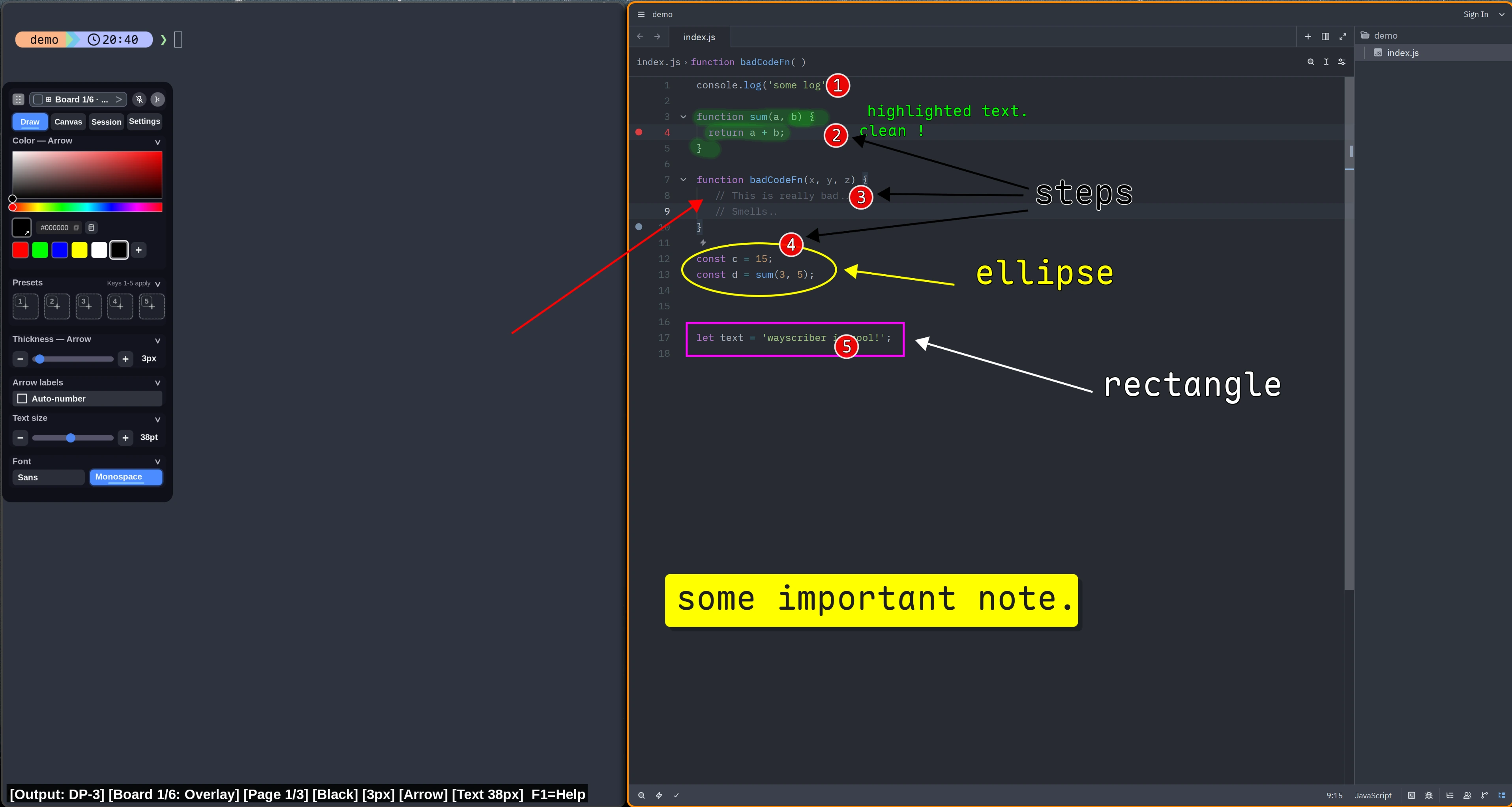
More screenshots
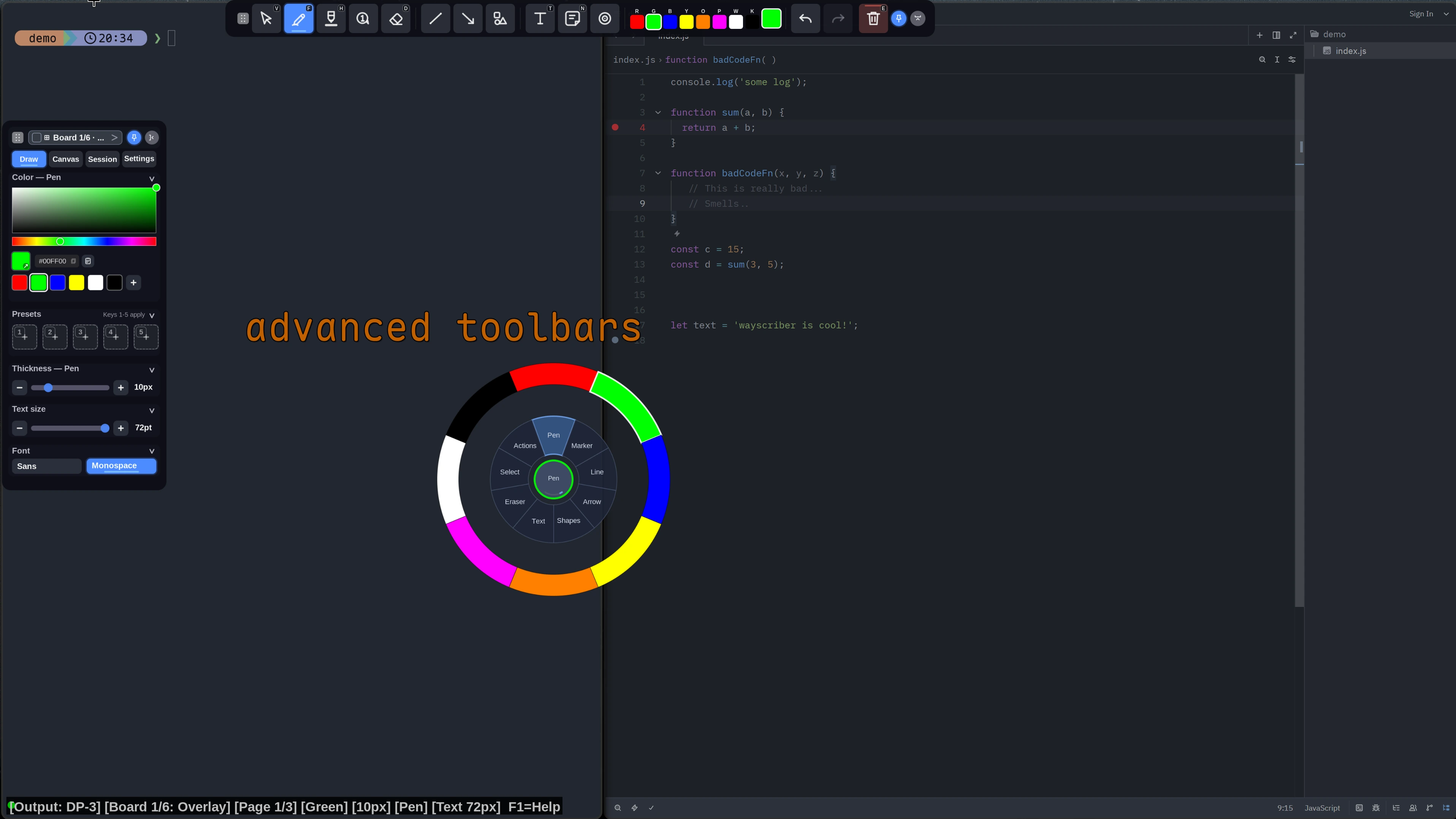 Radial tool menu |
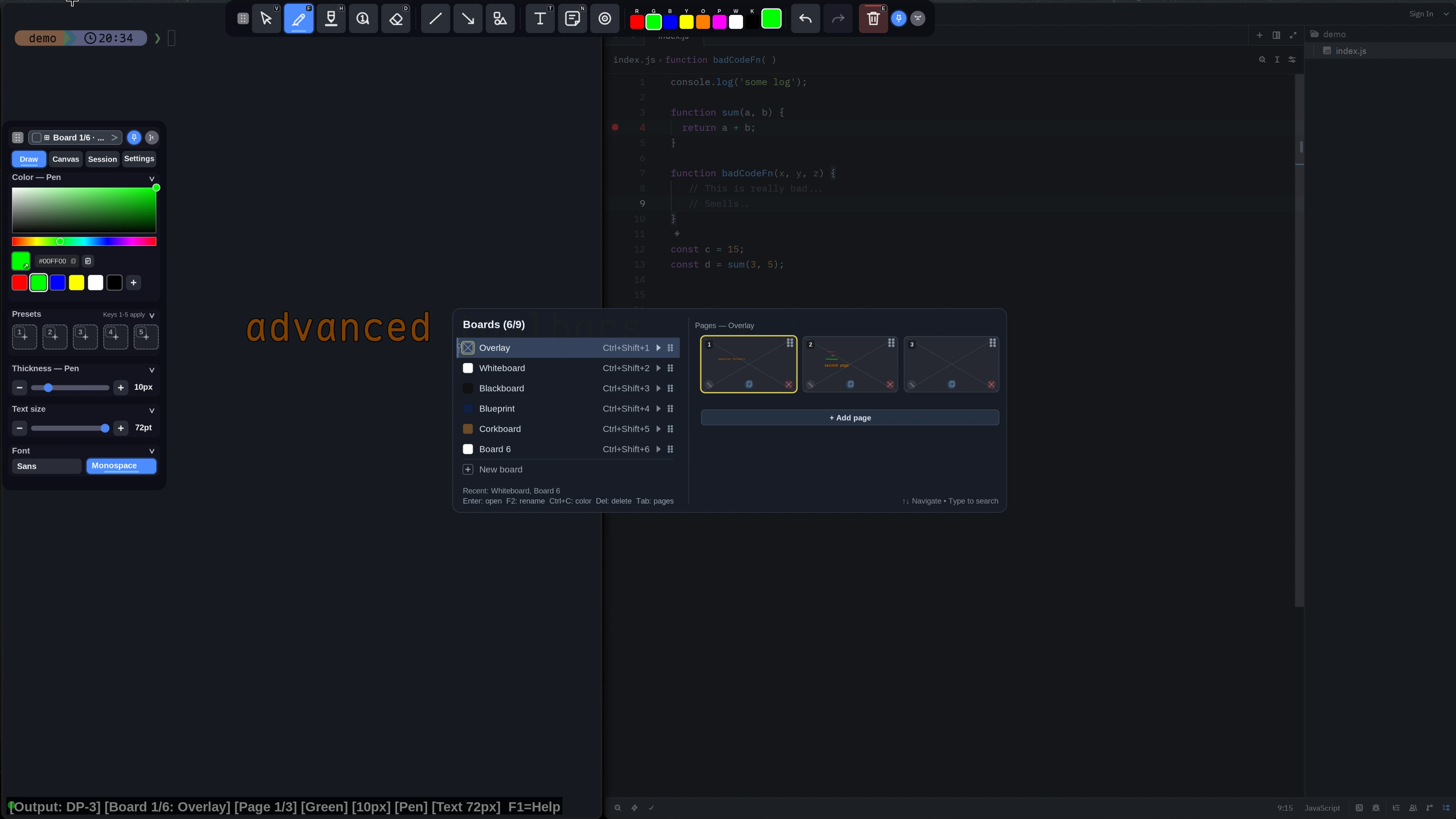 Boards & pages |
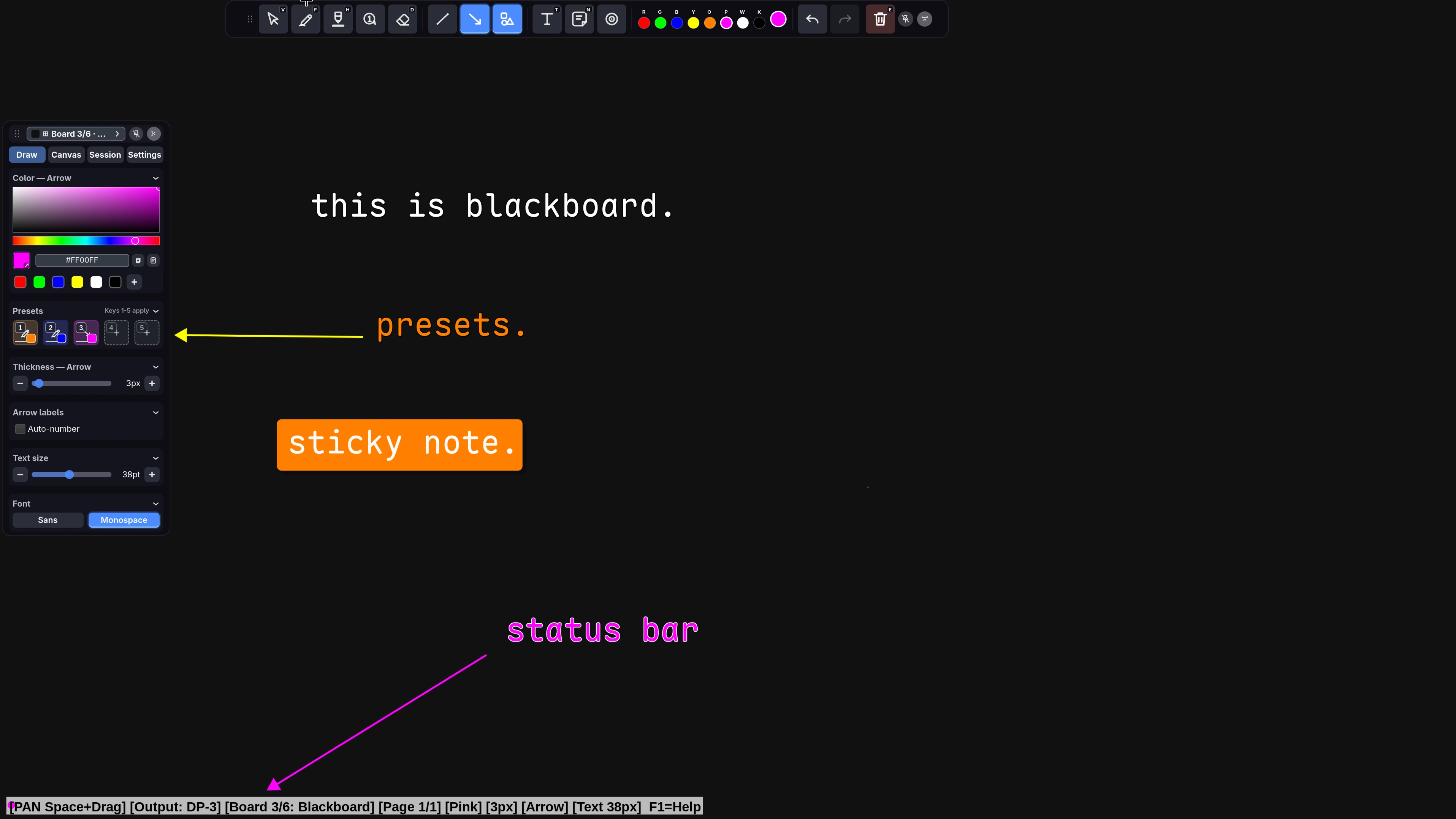 Blackboard |
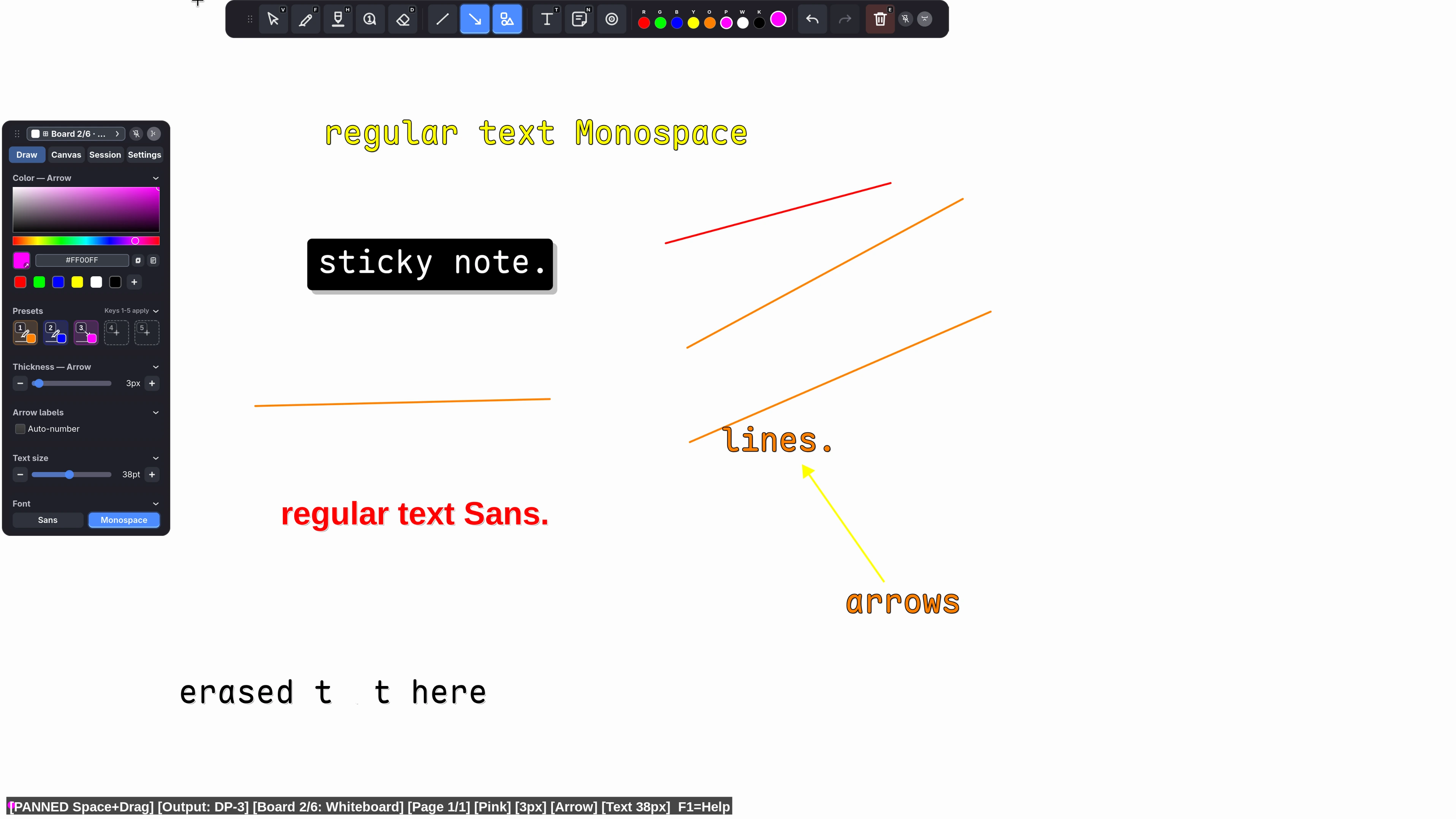 Whiteboard |
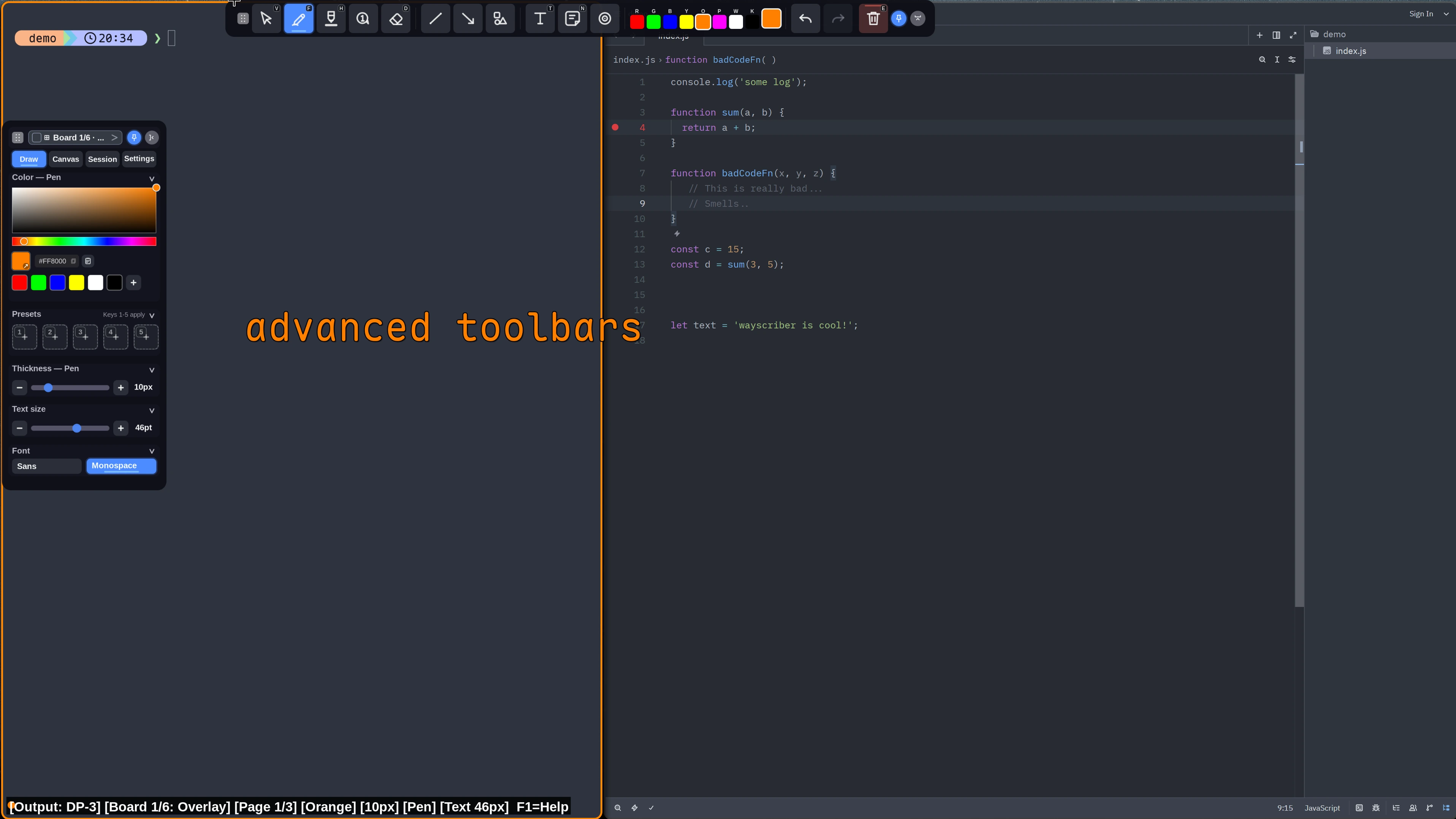 Advanced toolbar |
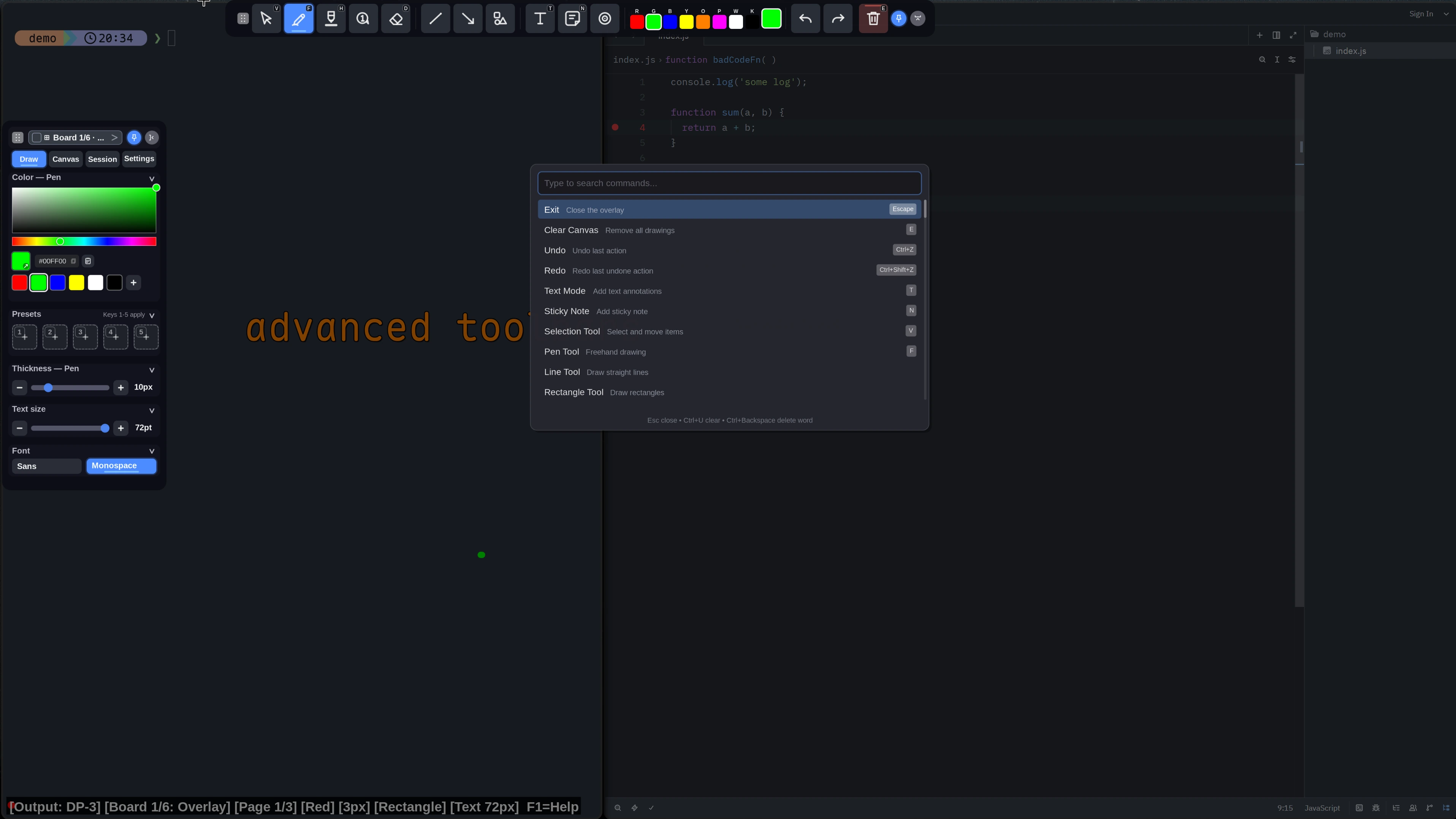 Command palette |
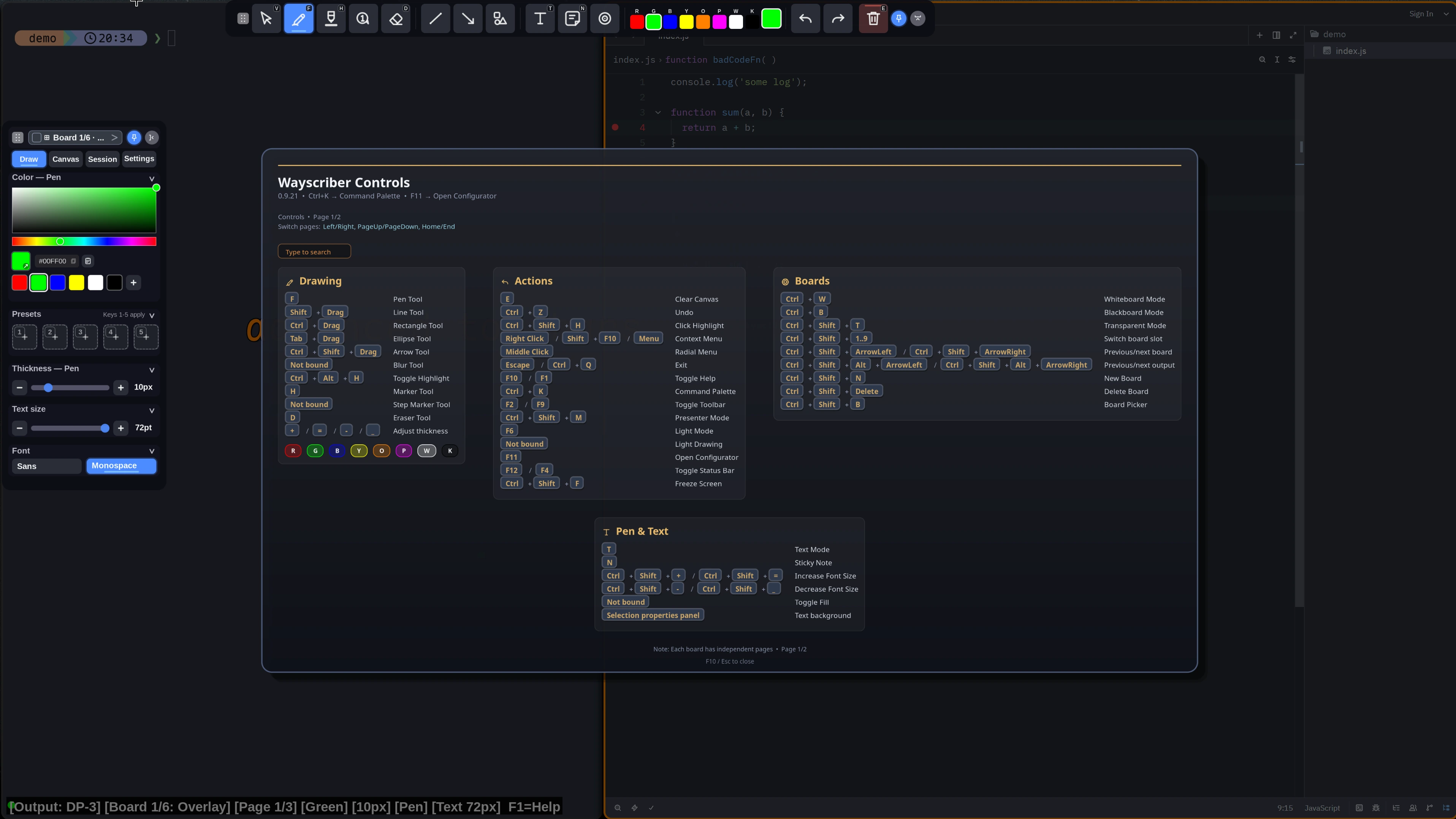 Built-in controls (F1) |
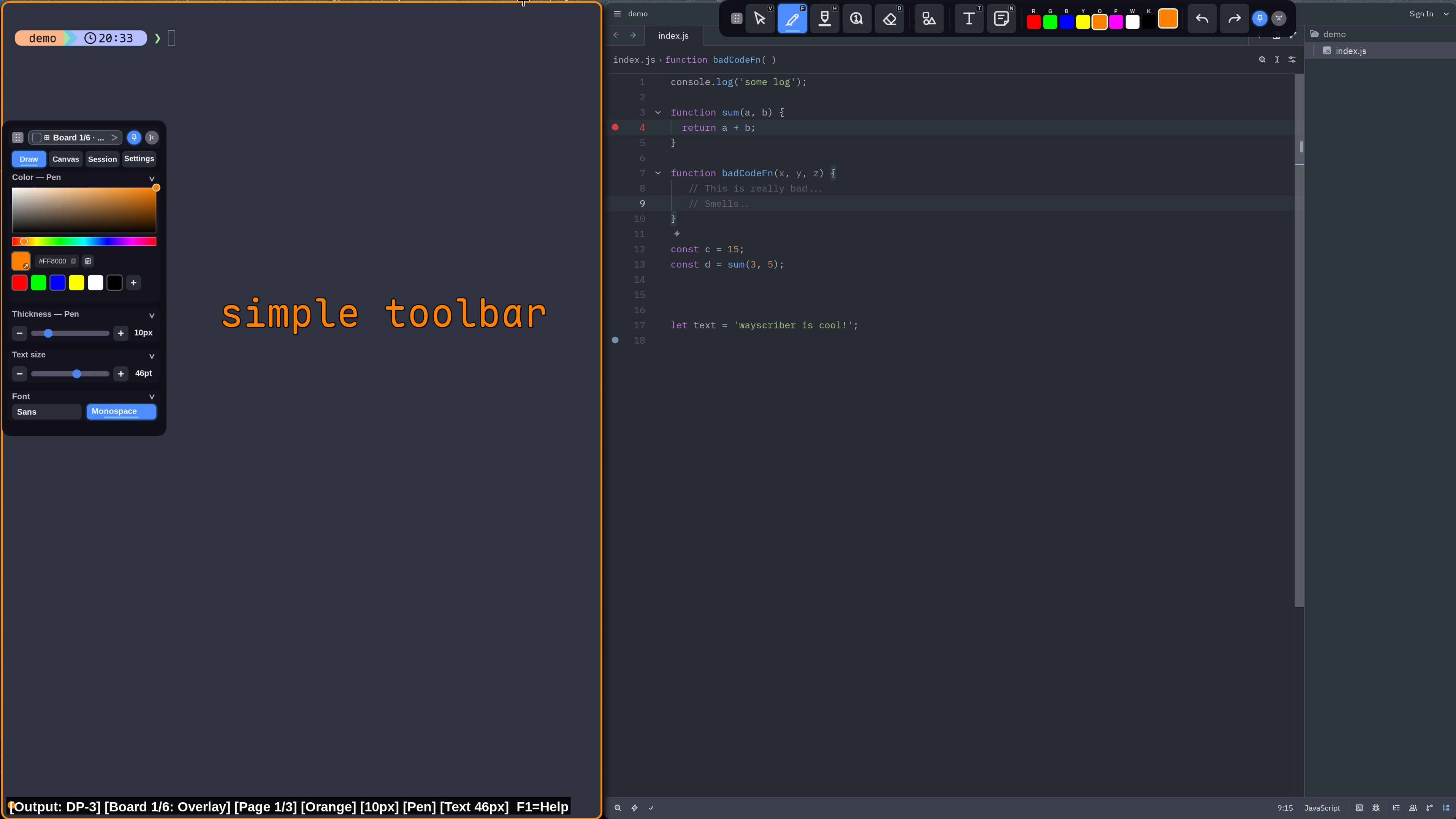 Simple toolbar |
Table of contents
- Why wayscriber?
- Features
- Installation
- First launch
- Usage
- Getting help
- Controls reference
- Configuration
- Troubleshooting
- Contributing
- Roadmap
- License and credits
Why wayscriber?
- Annotate live over any app without disrupting your workflow
- Professional presentation tools — presenter mode, numbered callouts, click highlights, screen freeze, zoom
- Persistent sessions that survive restarts
- Native Wayland performance with ZoomIt-like controls
- Lightweight daemon with instant toggle via keybind
Platform support
| Platform | Status | Notes |
|---|---|---|
| Wayland (layer-shell) | ✅ Supported | Hyprland, Sway, River, Wayfire, Niri/Cosmic, Plasma/KWin |
| GNOME | ⚠️ Partial | Normal overlay and Freeze via portal when available; light passthrough unavailable |
| X11 | ❌ | Not supported |
The prebuilt .deb packages have a minimum-release requirement — see the note in Debian and Ubuntu. RPMs, the AUR packages, and Nix are unaffected.
Tested environments
- Ubuntu 25.10 GNOME (xdg fallback)
- Fedora 43 KDE (Plasma, layer-shell)
- Fedora 43 GNOME (xdg fallback)
- Debian 13.2 KDE (Plasma, layer-shell)
- Debian 13.2 GNOME (xdg fallback)
- CachyOS 2025-August KDE (Plasma, layer-shell)
- Hyprland on Arch (layer-shell)
- Niri on Arch (layer-shell)
Comparison with ZoomIt
| Feature | ZoomIt (Windows) | wayscriber |
|---|---|---|
| Drawing tools | ✅ | ✅ |
| Boards/Backgrounds | ✅ | ✅ |
| Multi-line text | ❌ | ✅ |
| Custom fonts | ❌ | ✅ |
| Config file | ❌ | ✅ |
| Help overlay | ❌ | ✅ |
| Zoom | ✅ | ✅ |
| Break timer | ✅ | ❌ |
Features
Drawing and editing
- Freehand pen, highlighter, eraser (circle/rect)
- Shapes: lines, rectangles, ellipses, polygons (with fill toggle)
- Arrows with optional auto-numbered labels; step markers for walkthroughs
- Multiline text and sticky notes with smoothing
- Selection: Alt-drag, V tool, properties panel
- Duplicate (Ctrl+D), delete (Delete), undo/redo
- Color picker, screen eyedropper with a magnified pixel loupe, palettes, size via hotkeys or scroll
- Render color profiles for print/projector/light-theme preview
- Radial menu at cursor (Middle-click): quick tool/color selection plus scroll size adjust
Boards
- Named boards with transparent overlay or custom backgrounds
- Isolated pages per board with auto-contrast pens
- Pan solid boards with Space + left-drag; reset from the context menu
- Jump slots: Ctrl+Shift+1..9
- Toggle whiteboard/blackboard
- Board picker: Ctrl+Shift+B
Capture and screenshots
- Full-screen saves, active-window grabs, region capture
- Copy to clipboard or save to file
- Uses
grim,slurp,wl-clipboard(installed automatically by deb/rpm/AUR packages; fallback: xdg-desktop-portal)
Sessions and persistence
- Session persistence is enabled by default for boards, undo/redo history, and tool state
- Per-output default sessions, plus named session files with
--session-file - Overlay Session panel, configurator Session tab, tray toggle, and CLI overrides
- See Session manager and persistence for the full workflow
Toolbars and UI
- Floating toolbars (pin/unpin: F2/F9)
- Two toolbar frontends: GTK4-rendered bars on layer-shell compositors (Hyprland, KWin, Wayfire, River, ...), with automatic fallback to the built-in Cairo bars everywhere else (GNOME xdg fallback, forced-inline mode, builds without the
toolbar-gtkfeature) - Pick a frontend explicitly with
ui.toolbar.backend = "auto" | "gtk" | "builtin"orWAYSCRIBER_TOOLBAR_BACKEND - Preset slots, icon or text modes
- Color picker with extended palettes and a screen eyedropper (toolbar, popup, or command palette)
- Status bar, board/page controls
- Help overlay (F1), quick reference (Shift+F1)
- Command palette (Ctrl+K or Ctrl+Shift+P)
- Search, run, edit, unbind, or reset action shortcuts from the command palette; hold Ctrl+Shift while clicking a bindable toolbar control for direct shortcut capture (the modifier chord is configurable)
Multi-monitor
- Move overlay focus between monitors: Ctrl+Alt+Shift+←/Ctrl+Alt+Shift+→
- Toolbars and status bar follow the active output when output focus changes
- Optional active output badge in status bar (
ui.active_output_badge) - Output-scoped session restore when
session.per_output = true - GNOME fallback output pinning via
ui.preferred_outputorWAYSCRIBER_XDG_OUTPUT
Presets
- Save tool + color + size (plus fill/opacity/text) into 3–5 slots
- Apply: 1–5; save: Shift+1–Shift+5
Presenter tools
- Click highlights with configurable colors/radius/duration
- Persistent ring while the click highlight tool is active
- Presenter mode (Ctrl+Shift+M): hides UI, forces click highlights
- Light passthrough (layer-shell): draw while input passes through to the app underneath — see Light passthrough mode
- Screen freeze (Ctrl+Shift+F): pause the display while apps keep running. On GNOME, this uses the screenshot portal when available
Callouts and zoom
- Numbered callouts: auto-numbered arrow labels and step markers; reset arrow labels with Ctrl+Shift+R
- Zoom: spotlight details with ZoomIt-style controls
- Zoom in/out: Ctrl+Alt + scroll or Ctrl+Alt + +/-
- Reset: Ctrl+Alt+0; lock view: Ctrl+Alt+L
- Pan: middle drag or arrow keys
- Right-click menu: Zoom → Zoom In / Zoom Out / Reset Zoom
Installation
Pick the path that matches your setup:
| You want | Use |
|---|---|
| Fast CLI install with auto-updates on Debian/Ubuntu/Mint/Pop!_OS | Debian and Ubuntu |
| Fast CLI install with auto-updates on Fedora/RHEL/Rocky/Alma/Nobara | Fedora and RHEL |
| Arch, Manjaro, CachyOS, or another Arch-based distro | AUR, preferably wayscriber-bin for the prebuilt package |
Nix profile, nix run, or NixOS flake setup |
NixOS and Nix |
| One-off package (browser or terminal) without adding a repo | GitHub Releases |
| Hacking on wayscriber or building a local binary | From source |
Repo, AUR, and Nix installs are the best default for CLI users because they use the normal system update flow. GitHub .deb/.rpm downloads are one-off installs (no auto-updates); use them only when you do not want to add a repo.
Install the main wayscriber package first. wayscriber-configurator is an optional GUI settings app and does not include the wayscriber binary.
Debian and Ubuntu
Also use this path for Linux Mint, Pop!_OS, and other Debian-based distros.
Requires Ubuntu 25.04+ or Debian 13 (trixie) or newer. The packages depend on
libgtk4-layer-shell0for the toolbars, which older releases — including Ubuntu 24.04 LTS, Mint 22, and Pop!_OS 22.04 — do not ship. On those, build from source; Pop!_OS 22.04 requires the GTK-less build option.
sudo apt update
sudo apt install curl gpg
sudo install -d -m 0755 /usr/share/keyrings
curl -fsSL https://wayscriber.com/apt/WAYSCRIBER-GPG-KEY.asc | gpg --dearmor | sudo tee /usr/share/keyrings/wayscriber.gpg > /dev/null
echo "deb [signed-by=/usr/share/keyrings/wayscriber.gpg] https://wayscriber.com/apt stable main" | sudo tee /etc/apt/sources.list.d/wayscriber.list
sudo apt update
sudo apt install wayscriber
# Optional GUI configurator:
sudo apt install wayscriber-configurator
For a one-off .deb without adding the repo, see GitHub Releases.
Fedora and RHEL
Also use this path for Rocky Linux, AlmaLinux, Nobara, and other RPM-based distros.
cat <<'EOF' | sudo tee /etc/yum.repos.d/wayscriber.repo
[wayscriber]
name=Wayscriber Repo
baseurl=https://wayscriber.com/rpm
enabled=1
gpgcheck=1
repo_gpgcheck=1
gpgkey=https://wayscriber.com/rpm/RPM-GPG-KEY-wayscriber.asc
EOF
sudo dnf clean all
sudo dnf install wayscriber
# Optional GUI configurator:
sudo dnf install wayscriber-configurator
For a one-off .rpm without adding the repo, see GitHub Releases.
Arch Linux (AUR)
Also use this path for Manjaro, CachyOS, and other Arch-based distros.
yay -S wayscriber-bin    # prebuilt binary
# or:
yay -S wayscriber        # build from source
# Optional GUI configurator:
yay -S wayscriber-configurator
Use your preferred AUR helper if you do not use yay.
NixOS and Nix
Run without installing:
nix run github:devmobasa/wayscriber -- --active
Install to profile:
nix profile install github:devmobasa/wayscriber
# Optional GUI configurator:
nix profile install github:devmobasa/wayscriber#wayscriber-configurator
Add to NixOS configuration (flake-based):
# flake.nix
{
  inputs = {
    nixpkgs.url = "github:NixOS/nixpkgs/nixos-unstable";
    wayscriber.url = "github:devmobasa/wayscriber";
  };

  outputs = { nixpkgs, wayscriber, ... }: {
    nixosConfigurations.myhost = nixpkgs.lib.nixosSystem {
      system = "x86_64-linux";
      modules = [{
        environment.systemPackages = [
          wayscriber.packages.x86_64-linux.default
        ];
      }];
    };
  };
}
Development shell:
nix develop github:devmobasa/wayscriber
Unpinned GitHub flake URLs follow the default branch. Pin a release tag when you want reproducible release installs:
nix run 'github:devmobasa/wayscriber?ref=v0.9.19' -- --active
nix profile install 'github:devmobasa/wayscriber?ref=v0.9.19'
nix profile install 'github:devmobasa/wayscriber?ref=v0.9.19#wayscriber-configurator'
GitHub Releases (one-off)
Install the release package directly if you prefer not to add a repo — these are one-off installs with no auto-updates.
In a browser:
- Open the latest release.
- Install the main app package that matches your distro:
- wayscriber-amd64.deb — Ubuntu 25.04+, Debian 13+, and other newer Debian-based distros (see the release requirement)
- wayscriber-x86_64.rpm — Fedora, RHEL, Rocky Linux, AlmaLinux, Nobara, and other RPM-based distros
- Optional: install the configurator package after wayscriber:
- wayscriber-configurator-amd64.deb
- wayscriber-configurator-x86_64.rpm
- Note:
wayscriber-configuratoris a separate app and does not installwayscriber.
- Launch Wayscriber from your application menu/launcher.
- Optional later: switch to daemon mode (recommended) using the steps in Daemon mode.
Same one-off install from the terminal (.deb / .rpm)
Debian/Ubuntu:
wget -O wayscriber-amd64.deb https://github.com/devmobasa/wayscriber/releases/latest/download/wayscriber-amd64.deb
sudo apt install ./wayscriber-amd64.deb
Fedora/RHEL:
wget -O wayscriber-x86_64.rpm https://github.com/devmobasa/wayscriber/releases/latest/download/wayscriber-x86_64.rpm
sudo dnf install ./wayscriber-x86_64.rpm
Configurator .deb (optional):
wget -O wayscriber-configurator-amd64.deb https://github.com/devmobasa/wayscriber/releases/latest/download/wayscriber-configurator-amd64.deb
sudo apt install ./wayscriber-configurator-amd64.deb
Configurator .rpm (optional):
wget -O wayscriber-configurator-x86_64.rpm https://github.com/devmobasa/wayscriber/releases/latest/download/wayscriber-configurator-x86_64.rpm
sudo dnf install ./wayscriber-configurator-x86_64.rpm
From source
Rust 1.95 or newer is required. If rustup is not already installed, install it (this also installs cargo), then load Cargo into your current shell:
curl --proto '=https' --tlsv1.2 -sSf https://sh.rustup.rs | sh
source "$HOME/.cargo/env"
Then clone the repository — the dependency and build steps below run from inside it:
git clone https://github.com/devmobasa/wayscriber.git
cd wayscriber
rustup toolchain install 1.95.0
rustup override set 1.95.0
cargo --version
The override selects Rust 1.95 only inside this checkout and leaves your global default unchanged. You can instead keep any existing default that is already Rust 1.95 or newer.
Dependencies:
# Debian/Ubuntu
sudo apt-get install libcairo2-dev libwayland-dev libpango1.0-dev libgtk-4-dev

# Ubuntu 25.04+ / Debian 13 (trixie)+ also ship the layer-shell dev package:
sudo apt-get install libgtk4-layer-shell-dev

# Fedora
sudo dnf install gcc gcc-c++ make pkgconf-pkg-config cairo-devel wayland-devel pango-devel libxkbcommon-devel cairo-gobject-devel gtk4-devel gtk4-layer-shell-devel
On Ubuntu 24.04 LTS and Mint 22 there is no libgtk4-layer-shell-dev package, but GTK itself is new enough. Either build the small layer-shell library from the pinned source (needs meson ninja-build wayland-protocols, installs into /usr):
sudo apt-get install meson ninja-build wayland-protocols
bash tools/install-gtk4-layer-shell.sh   # builds + installs gtk4-layer-shell 1.3.0
…or skip it and use the GTK-less build option below. That keeps the built-in Cairo toolbars and every other default feature.
Pop!_OS 22.04 ships GTK 4.6, below the GTK 4.12 API required by the default build. Building only gtk4-layer-shell is therefore not enough there: use the GTK-less build below, unless you separately install GTK 4.12 or newer.
Build:
With the GTK toolbar frontend (the default):
cargo build --release
# Binary: target/release/wayscriber
Without the GTK toolbar frontend:
cargo build --release --no-default-features --features tablet-input,portal,tray
# Binary: target/release/wayscriber
Optional install script:
./tools/install.sh
Screenshot tools
wl-clipboard, grim, and slurp are installed automatically by deb/rpm/AUR packages.
If you build from source or use the tarball, install them manually:
sudo apt-get install wl-clipboard grim slurp   # Debian/Ubuntu
sudo dnf install wl-clipboard grim slurp       # Fedora
First launch
After installing:
wayscriber --version
wayscriber --active
(If you used nix run instead of installing, wayscriber is not on your PATH — keep using the nix run command from Installation.)
Once the overlay is up:
- F1 or F10 — help overlay
- Shift+F1 — quick reference
- Ctrl+K / Ctrl+Shift+P — command palette
- F11 — configurator
- Escape — hide or exit
For daily use, set up daemon mode: toggles are faster and session state survives between activations.
Usage
Daemon mode (recommended)
Run wayscriber in the background and toggle it with a keybind. Recommended for daily use: faster toggle, better workflow, and session persistence.
Enable the service:
systemctl --user enable --now wayscriber.service
wayscriber --daemon-toggle
Prefer a GUI? Open wayscriber-configurator, go to the Daemon tab, and click Install/Update Service, then Enable + Start.
Bind a toggle key:
Bind wayscriber --daemon-toggle to a global shortcut in your compositor or desktop environment. The configurator's Daemon tab can also do this: set a shortcut and click Apply Shortcut (GNOME: writes a GNOME custom shortcut; KDE/Plasma: writes the systemd drop-in env WAYSCRIBER_PORTAL_SHORTCUT for portal global shortcuts).
Hyprland:
bind = SUPER, D, exec, wayscriber --daemon-toggle
Then reload your config:
hyprctl reload
GNOME (Ubuntu/Debian/Fedora):
- Open
Settings -> Keyboard -> Keyboard Shortcuts. - Scroll down to
Custom Shortcuts, click+. - Name:
Wayscriber Toggle. - Command:
wayscriber --daemon-toggle. - Set a shortcut key (recommended on Ubuntu GNOME: Super+G; Super+D is often already in use).
KDE Plasma:
- Open
Settings -> Keyboard -> Shortcuts. - Add new
Command or Script. - Name:
Wayscriber Toggle. - Command:
wayscriber --daemon-toggle. - Assign a key (for example Meta+Shift+D).
Other desktops/window managers: bind wayscriber --daemon-toggle to any global shortcut key you prefer.
Use only one toggle binding. Duplicate entries (for example two
SUPER+Dbinds, or a leftover one-shot bind on the same key) can fire twice and immediately undo the toggle. If your compositor shortcut environment does not resolvewayscriberfromPATH, use the absolute path fromcommand -v wayscriberinstead.
System tray:
Right-click the tray icon for options. Less-frequent actions are grouped into Drawing Modes, Capture, and Settings & Data submenus so the menu remains usable on shorter or scaled displays:
- Toggle overlay visibility
- Freeze/unfreeze the current overlay
- Capture full screen / active window / region
- Toggle the help overlay
- Flip session resume on/off (writes to config)
- Clear saved session data
- Open the log folder
- Open configurator / open config file / quit
Supported desktops use a theme-adaptive symbolic tray icon. Hosts that do not reliably resolve named icons (including Noctalia/Quickshell/COSMIC) automatically receive scale-aware colored pixmaps, including a 48px HiDPI rendition. Set [tray].icon_style to "auto" (default), "symbolic", or "colored" to choose the main tray icon style; restart the daemon after changing it. Use --no-tray or WAYSCRIBER_NO_TRAY=1 if you don't have a system tray. If the tray icon is still blank or the menu shows square placeholders, start the daemon with WAYSCRIBER_TRAY_FORCE_PIXMAP=1; this environment override takes precedence over the TOML setting.
Alternative — compositor autostart instead of systemd:
exec-once = wayscriber --daemon
bind = SUPER, D, exec, wayscriber --daemon-toggle
Service commands:
systemctl --user status wayscriber.service
systemctl --user restart wayscriber.service
journalctl --user -u wayscriber.service -f
One-shot mode (alternative)
Launch wayscriber when you need it, then exit:
wayscriber --active
wayscriber --active --mode whiteboard
wayscriber --active --mode blueprint
wayscriber --freeze   # start with screen frozen
whiteboard and blackboard are built in; blueprint is an example of a custom board defined in config.toml ([[boards.items]] — see Configuration).
Bind to a key (Hyprland example):
bind = SUPER, D, exec, wayscriber --active
The same in-overlay shortcuts apply as in First launch; Escape or Ctrl+Q exits.
Light passthrough mode
Light passthrough (layer-shell compositors only) lets normal keyboard and pointer input reach the app underneath while wayscriber stays visible for drawing.
- F6 enters passthrough from the focused overlay. It is a wayscriber in-overlay shortcut, not an OS/global shortcut — once passthrough is active, wayscriber may no longer receive that keypress.
- For reliable control (including getting back out of passthrough), bind compositor/global shortcuts to
wayscriber --light-toggleandwayscriber --light-draw-toggle. - Use
wayscriber --light-draw-onon press andwayscriber --light-draw-offon release for draw-while-held shortcuts. - Hyprland and KDE binding examples are in docs/SETUP.md; the KDE section follows the Hyprland binding example.
- Stock GNOME Wayland does not support this mode — regular app windows cannot provide the required click-through shell overlay. Freeze may still work for still-image capture, but it is not a live passthrough replacement. A GNOME Shell extension approach would be needed for true shell-level passthrough.
Screenshots and export
| Shortcut | Action |
|---|---|
| Ctrl+Alt+F | Capture full screen (respects capture.copy_to_clipboard) |
| Ctrl+Shift+O | Capture active window (respects capture.copy_to_clipboard) |
| Ctrl+Shift+I | Capture selection (respects capture.copy_to_clipboard) |
| Ctrl+C | Copy full screen to clipboard |
| Ctrl+S | Save full screen as PNG |
| Ctrl+Shift+C | Select region → clipboard |
| Ctrl+Shift+S | Select region → save PNG |
| Ctrl+6 | Region → clipboard (explicit) |
| Ctrl+Alt+6 | Region → save PNG (explicit) |
| Ctrl+Alt+O | Open last capture folder |
Shortcuts marked "respects capture.copy_to_clipboard" send the capture to the clipboard or a file according to that config.toml setting; the other shortcuts always use the destination shown. Captures need the screenshot tools and fall back to xdg-desktop-portal if they are missing.
Use --exit-after-capture / --no-exit-after-capture to override whether the overlay closes after a capture.
PDF export
Canvas export commands are available in the command palette and keybindings. export_board_pdf_file saves the active board as a multi-page PDF, export_all_boards_pdf_file saves every board in board order, and both PDF actions are unbound by default. PDF exports keep transparent pages blank unless [export.pdf] transparent_background = "desktop" is set, which captures the live desktop behind the overlay for transparent pages only.
Getting help
- Help overlay: F1 or F10
- Quick reference: Shift+F1
- Command palette: Ctrl+K or Ctrl+Shift+P (search
monitorordisplayfor output actions) - About window:
wayscriber --about - Full docs: https://wayscriber.com/docs/
Controls reference
Press F1 for the complete in-app cheat sheet.
Essential shortcuts
| Action | Key |
|---|---|
| Freehand pen | Drag |
| Arrow | Ctrl+Shift + drag |
| Rectangle | Ctrl + drag |
| Text mode | T |
| Select/move | Alt + drag or V |
| Undo / Redo | Ctrl+Z / Ctrl+Y |
| Color keys | R G B Y O P W K |
| Size | + / - or scroll |
| Help | F1 |
| Exit | Escape |
All drawing tools
| Action | Key/Mouse |
|---|---|
| Freehand pen | Drag with left mouse button |
| Straight line | Shift + drag |
| Rectangle | Ctrl + drag |
| Ellipse/Circle | Tab + drag |
| Arrow | Ctrl+Shift + drag |
| Triangle / parallelogram / rhombus / regular polygon | Toolbar Polygons picker (bindable) |
| Freeform polygon | Toolbar Polygons picker, then click vertices; Enter or double-click to finish |
| Step marker tool | Toolbar (bindable) |
| Highlight brush | Ctrl+Alt+H |
| Text mode | T, Click to position, type, Enter to finish |
| Sticky note | N, Click to place, type, Enter to finish |
The polygon tools are available from the toolbar picker; their default keybindings are intentionally empty. Drag and mouse-button mappings are configurable — see Drag-tool mappings.
Boards
| Action | Key |
|---|---|
| Toggle Whiteboard | Ctrl+W |
| Toggle Blackboard | Ctrl+B |
| Return to Transparent | Ctrl+Shift+T |
| Switch board slot | Ctrl+Shift+1..9 |
| Previous/next output | Ctrl+Alt+Shift + ←/→ |
| Previous/next board | Ctrl+Shift + ←/→ |
| New board | Ctrl+Shift+N |
| Delete board | Ctrl+Shift+Delete |
| Board picker | Ctrl+Shift+B |
| Pan solid boards | Hold Space + left-drag |
| Reset solid-board pan | Right-click → Reset Canvas Position |
Colors and sizes
| Color | Key |
|---|---|
| Red | R |
| Green | G |
| Blue | B |
| Yellow | Y |
| Orange | O |
| Pink | P |
| White | W |
| Black | K |
The first eight quick colors map to the shortcuts above and are customizable — see Quick colors.
Pick a color directly from the displayed desktop with the screen eyedropper: press I, use the eyedropper button in the toolbar or color picker, or search for Pick screen color in the command palette (Ctrl+K). Rebind it if you prefer another shortcut:
[keybindings.colors]
pick_screen_color = ["I"]
| Action | Key |
|---|---|
| Increase thickness | + / = / scroll down |
| Decrease thickness | - / _ / scroll up |
| Increase font size | Ctrl+Shift + + / Shift + scroll down |
| Decrease font size | Ctrl+Shift + - / Shift + scroll up |
| Increase marker opacity | Ctrl+Alt + ↑ |
| Decrease marker opacity | Ctrl+Alt + ↓ |
Selection and arrange
| Action | Key |
|---|---|
| Duplicate selection | Ctrl+D |
| Copy selection | Ctrl+Alt+C |
| Paste selection or copied PNG/JPEG image | Ctrl+Alt+V |
| Delete selection | Delete |
| Bring to front/back | ] / [ |
| Nudge selection | Arrow keys (large: PageUp/PageDown) |
| Move to edges | Home/End / Ctrl+Home/Ctrl+End |
| Select/move shapes | Hold Alt + drag |
| Select tool | V |
| Add to selection | Shift + click |
| Selection properties | Ctrl+Alt+P |
Pages
| Action | Key |
|---|---|
| Previous/next page | Ctrl+Alt + ←/→ or Ctrl+Alt + PageUp/PageDown |
| New page | Ctrl+Alt+N |
| Duplicate page | Ctrl+Alt+D |
| Delete page | Ctrl+Alt+Delete |
Editing and UI
| Action | Key |
|---|---|
| Undo | Ctrl+Z |
| Redo | Ctrl+Shift+Z / Ctrl+Y |
| Select all | Ctrl+A |
| Eraser | D |
| Toggle eraser mode | Ctrl+Shift+E |
| Clear all | E |
| Cancel action | Right-click (while drawing) / Escape |
| Context menu | Right-click (idle) / Shift+F10 / Menu, Arrow keys + Enter/Space |
| Edit selected text/note | Enter (single selection) |
| Toggle toolbars | F2 / F9 |
| Help overlay | F1 / F10 |
| Quick reference | Shift+F1 |
| Configurator | F11 |
| Command palette | Ctrl+K / Ctrl+Shift+P |
| Screen eyedropper | I, toolbar/color picker, or Ctrl+K → Pick screen color |
| Radial menu | Middle-click (idle) open/close; Left-click select; Right-click/Escape dismiss; scroll adjusts active tool size |
| Status bar | F4 / F12 |
| Apply preset slot | 1 - 5 |
| Save preset slot | Shift+1 - Shift+5 |
| Toggle click highlight | Ctrl+Shift+H |
| Toggle light passthrough (in-overlay) | F6 (see Light passthrough mode) |
| Reset arrow labels | Ctrl+Shift+R |
| Toggle freeze | Ctrl+Shift+F |
| Zoom in/out | Ctrl+Alt + scroll / Ctrl+Alt + + / Ctrl+Alt + - |
| Reset zoom | Ctrl+Alt+0 |
| Toggle zoom lock | Ctrl+Alt+L |
| Pan zoom view | Middle drag / Arrow keys |
| Exit | Escape / Ctrl+Q |
Notes:
- Arrow labels can auto-number when enabled in the arrow toolbar; reset with Ctrl+Shift+R.
- Step markers auto-increment and reset from the toolbar (or bind
reset_step_markersinconfig.toml). - Preset slots can be saved/cleared from the toolbar; edit names and advanced fields in
config.toml. - The blur tool has no default keyboard shortcut; bind
select_blur_toolinconfig.tomlif you want direct keyboard access.
Configuration
Config file: ~/.config/wayscriber/config.toml
Create from example:
mkdir -p ~/.config/wayscriber
cp config.example.toml ~/.config/wayscriber/config.toml
Or use the GUI configurator:
wayscriber-configurator # or press F11
See docs/CONFIG.md and https://wayscriber.com/docs/ for the full reference.
Key sections
[drawing]
default_color = "red"
default_thickness = 3.0
polygon_sides = 5

[[drawing.quick_colors]]
label = "Blush"
color = "#FFB3BA"

[drawing.drag_tools.right]
drag_tool = "pen"
drag_color = "blue"

[presets]
# slot_count: 3-5
slot_count = 5

[presets.slot_1]
name = "Red pen"
tool = "pen"
color = "red"
size = 3.0

[performance]
# vsync and fps caps — see Performance tuning under Troubleshooting

[ui]
# status bar visibility and position

[boards]
# named boards + backgrounds
Drag-tool mappings
Drag modifier mappings are configurable via [drawing] (drag_tool, shift_drag_tool, ctrl_drag_tool, ctrl_shift_drag_tool, tab_drag_tool) or in the configurator Drawing tab. For per-button workflows, use [drawing.drag_tools.left], [drawing.drag_tools.right], and [drawing.drag_tools.middle]; each binding can set a tool and optional color. The polygon tools have intentionally empty default keybindings — select them from the toolbar picker or bind them yourself. Freeform polygon is selectable but not drag-bindable.
Quick colors
The quick color palette is configurable with ordered [[drawing.quick_colors]] entries. The first eight entries map to the R/G/B/Y/O/P/W/K shortcuts; if fewer are configured by hand, missing shortcut positions use the built-in defaults. The implicit default toolbar palette also preserves Cyan, Purple, and Gray as expanded toolbar colors while the radial menu keeps its original first-eight color ring. Explicit entries beyond the first eight have no shortcut action binding and opt those extra colors into dense palette UIs, capped to the first 24 colors.
Session manager and persistence
Session persistence is enabled by default. Manage it via the configurator (F11 → Session tab), CLI flags, or the tray checkmark (writes to config).
wayscriber --resume-session      # force resume (persist/restore all boards + history/tool state)
wayscriber --no-resume-session   # disable resume for this run
wayscriber --session-info        # inspect saved sessions
wayscriber --clear-session       # remove stored boards
wayscriber --clear-tool-state    # reset saved tool defaults, keep boards/history

# Named session files — --session-file combines with any of the flags above
# and with --active / --freeze / --daemon:
wayscriber --active --session-file ~/Documents/lecture-04.wayscriber-session
wayscriber --daemon-toggle --session-file ~/Documents/meeting.wayscriber-session
See Session manager examples for complete CLI, overlay, and configurator workflows.
Behavior notes
- Config values seed startup defaults. When
restore_tool_stateis enabled (default), the last-used tool settings saved in the session (including arrow head placement) override those config defaults on startup. Runwayscriber --clear-tool-stateto remove only that saved tool layer so config defaults apply next startup while saved boards/history remain. In a running overlay, use Command Palette → Reset Tool Defaults to clear the saved layer and immediately apply config defaults to the active tools. --session-fileuses exactly the selected file, implies persistence for that overlay run, rejects directories/symlinks/special files, and does not create missing parent directories. A running daemon can launch a hidden overlay with a named target; if the overlay is already visible, hide it before switching to a different named session.- The overlay Session panel lives in the side toolbar's Settings drawer. It can open an existing named session, save the current overlay as another named session, show session info, clear the active session, reopen recent named sessions, and jump to the configurator. The Open/Save As dialogs use
zenityorkdialog; Save As appends.wayscriber-sessionwhen no extension is supplied and asks before replacing existing session artifacts. - The configurator Session tab manages recent named sessions recorded when named-session targets are opened or saved from the CLI, daemon, or overlay. It can rename catalog labels, reveal files, and forget metadata without touching files. Clear Tool State removes only the saved tool layer; Clear Saved Data removes session files. Duplicate, Move, Clear Tool State, and Clear are disabled while an overlay, manually started daemon, or background service is active.
Tablet and stylus support
Tablet support (zwp_tablet_v2) ships in default builds and is enabled at runtime by default:
[tablet]
enabled = true
pressure_enabled = true
min_thickness = 1.0
max_thickness = 8.0
It works out of the box in default builds. Set [tablet].enabled = false in config.toml to opt out. To build without tablet support, drop only that feature (bare --no-default-features would also strip portal capture, tray, and the GTK toolbars): cargo build --release --no-default-features --features portal,tray,toolbar-gtk.
Troubleshooting
Daemon not starting after reboot
Enabled user services start when you log in, not at boot — if the daemon is missing after a reboot and login, see Service won't start. Enable lingering only if you want the daemon started before login or kept running after logout:
loginctl enable-linger $USER
Or use compositor autostart instead:
exec-once = wayscriber --daemon
Service won't start
systemctl --user status wayscriber.service
journalctl --user -u wayscriber.service -f
systemctl --user restart wayscriber.service
Overlay is blurry/non-transparent on KDE Plasma
Cause: The "Better Blur DX" effect (or similar blur effects) may blur wayscriber's transparent overlay.
Solution (Option 1 — configure Better Blur DX):
- Open System Settings → Window Management → Desktop Effects
- Click the configure button next to "Better Blur DX"
- Go to the Force Blur tab
- Add
wayscriberto the window class list - Make sure
Blur all except matchingis selected - Click Apply
Solution (Option 2 — use standard blur):
- Disable "Better Blur DX" in Desktop Effects
- Enable the standard "Blur" effect instead
To find wayscriber's window class, run this and launch wayscriber before the 2-second sleep ends:
sleep 2; qdbus org.kde.KWin /KWin queryWindowInfo | grep resourceClass
Overlay not appearing
- Verify Wayland session:
echo $WAYLAND_DISPLAY - Ensure compositor supports
wlr-layer-shell - Run with logs:
RUST_LOG=info wayscriber --active
Config issues
ls -la ~/.config/wayscriber/config.toml
RUST_LOG=info wayscriber --active   # watch for TOML errors
Environment variables
Common toggles:
WAYSCRIBER_TOOLBAR_DRAG_PREVIEW=0disables inline toolbar drag preview (default: on)WAYSCRIBER_TOOLBAR_POINTER_LOCK=1enables pointer-lock drag path (default: on)WAYSCRIBER_TOOLBAR_DRAG_THROTTLE_MS=12throttles toolbar drag updates (default: 12; set 0 to disable)WAYSCRIBER_DEBUG_TOOLBAR_DRAG=1enables toolbar drag logging (default: off)WAYSCRIBER_DEBUG_TOOLBAR_COLOR=1enables toolbar color picker logging (default: off)WAYSCRIBER_FORCE_INLINE_TOOLBARS=1forces inline toolbars on Wayland (default: off)WAYSCRIBER_TOOLBAR_BACKEND=auto|gtk|builtinoverrides the toolbar frontend (default: auto)WAYSCRIBER_NO_TRAY=1disables the tray icon (default: tray enabled)WAYSCRIBER_TRAY_FORCE_PIXMAP=1forces colored tray pixmaps and overrides[tray].icon_style
See docs/CONFIG.md for the full list.
Performance tuning
Default behavior prioritizes lower drawing latency by disabling vsync and capping no-vsync rendering:
[performance]
buffer_count = 3
enable_vsync = false
max_fps_no_vsync = 120
ui_animation_fps = 30
Use 120 as a strong low-latency cap for common systems. Try 144, 165, 240, or higher if it matches your display and the machine handles the extra rendering work. Use max_fps_no_vsync = 0 only for profiling because uncapped rendering can spin CPU/GPU hard.
Set enable_vsync = true when tear-free presentation, lower power use, or quieter behavior matters more than input latency. Vsync usually adds a frame-cadence floor, especially on 60 Hz displays; disabling it improves input latency but may allow tearing and higher CPU/GPU usage.
Contributing
Contribution principles: wayscriber is shared as a gift exchange, not a contract. Requests are welcome, but there is no guaranteed timeline or support obligation. For the full principles, see https://wayscriber.com/docs/ethos/gift-exchange.html
See CONTRIBUTING.md for development setup, project structure, and workflow notes.
Roadmap
- Native Wayland layer-shell
- Daemon mode with system tray
- Multiple customizable boards/backgrounds
- Session manager and persistence (named sessions, overlay actions, configurator catalog, CLI override, tray config toggle)
- Highlighter & eraser tools
- Additional shapes (filled shapes)
- Selection tools & properties panel
- Blur tool
- Tablet/stylus support with pressure
- Color picker
- Screen eyedropper: pick a draw color from the screen
- Render color profiles
- Zoom (ZoomIt-style controls)
- Presets (tool/color/size slots)
- Sticky notes
- Board pages (multi-page boards)
- Presenter mode
- Click highlights
- Screen freeze
- Light passthrough mode
- Command palette
- Radial menu
- Numbered callouts (incrementing arrow labels)
- Multi-monitor support
- Save annotations to image
- Multi-page board PDF export
Future plans are tracked in GitHub issues.
License and credits
MIT License — see LICENSE
Acknowledgments
- Inspired by ZoomIt by Mark Russinovich
- Built for Linux (distros that use Wayland)
- Similar ideas from Gromit-MPX
- Uses Cairo and smithay-client-toolkit
Developed with AI assistance (ChatGPT, Codex, Claude Code).